
 Tutorial: How Google Now can help you be more efficient
 Google Now is Android's take on Apple's Siri, the voice-powered search engine that understands human speech and delivers nearly instantaneous spoken results.
But while the voice search is a big part of Google Now, it actually goes one step further and learns your day-to-day movements and web searches so it can deliver results it thinks will be useful to you.
While it may sound hideously intrusive, it's actually rather beneficial. Upon waking it looks at traffic and figures out the best route for you to get to work.
If you go travelling, it works out where in the world you are and delivers currency and translation options.
It's all powered by Google's own search engine, and the best time to start using it is - appropriately enough - now.
Google Now is Android's take on Apple's Siri, the voice-powered search engine that understands human speech and delivers nearly instantaneous spoken results.
But while the voice search is a big part of Google Now, it actually goes one step further and learns your day-to-day movements and web searches so it can deliver results it thinks will be useful to you.
While it may sound hideously intrusive, it's actually rather beneficial. Upon waking it looks at traffic and figures out the best route for you to get to work.
If you go travelling, it works out where in the world you are and delivers currency and translation options.
It's all powered by Google's own search engine, and the best time to start using it is - appropriately enough - now.
1. Get it Now
 At the time of writing, Google Now is only available on devices that are running Android 4.1 or above. To access it on your device, you need to slide upwards from the home icon, or slide the unlock symbol upwards. You can also get to Now by tapping the 'Google' icon in your Apps folder.
2. Getting started
 Start Google Now and tap 'Next' to see examples of how it can help you plan your commute, or get up-to-date information about flights. It then checks with you that it's all right for it to use certain pieces of information, such as your location and calendars. Tap 'Yes, I'm in' to get started.
3. Hidden cards
 To start with, you'll see a few cards on the Now page. These are dependent on how often you use Google for directions and searches, but you should see some relevant results here - more appear over time. Tap a card to see relevant results, or swipe horizontally to remove it if you don't want it.
4. Card business
 Tap 'Show more cards' and you should see a few more, maybe showing local restaurants and pubs, for example. If there's more than one card in any one category, you can switch between them simply by tapping the top of each one. The more you use Google Now, the more cards you will see.
5. Settings
 Each card has a settings icon comprised of three vertical dots. Tapping on this enables you to set the 'Notifications' applicable to each card. 'Standard' means that new notifications appear to the top, accompanied by a ringtone or vibration; 'Low priority' places them to the bottom without any alerts; and 'Off' switches them off altogether.
6. Ideal standards
 At the bottom-right you'll find another settings icon. Tap on this to see more sample cards, refresh Now and get new cards, and send feedback to Google. Tap 'Settings' and you're able to set up Voice so you can talk to Now. 'Tablet search' enables you to choose which apps on your tablet Now can search - make sure these are all checked.
7. Sampling the wares
 At the top of Google Now, tap 'Show sample cards' and you will see a list of all the categories of cards that are available on the service. Tap 'Sample card' to see an example card for each category. Some of these may be tailored to your personal location or history, such as 'Traffic' or 'Places'.
8. Setting the cards
 You'll find a 'Settings' link to the right of each category, with unique settings for each card. 'Traffic' monitors where you go on a regular basis, as well as recent Google searches for places. You can choose which journeys have cards here, and switch to public transport if you don't have a car.
9. Weather
 The weather app is particularly handy if you want to see the outlook for the day. In the settings, you can choose to set the card to appear in the morning, in the evening, or always. Now's weather sets itself to your current location, but you can change this to your home or work if you prefer.
10. Places
 Places highlights nearby restaurants, pubs and facilities. Tapping 'More details' brings up a place's location and relevant reviews in Google Maps. 'Check in' enables you to publish your location to Google Plus. In the Places settings you can choose to see cards for 'Places nearby if travelling', which is handy if you're on holiday.
11. Public transport and flights
 Google's immense catalogue of data includes public transport, and Now automatically brings up timetables and schedules when you're near bus and train stations, and even works out connections while you're travelling. Flights works similarly, flagging up departure times for flights you've Googled in the past.
12. Sports
 You can follow your favourite sports teams on Now, too, and you can choose whether a card appears before, during or after a match. Tap 'Edit teams' and then 'Add teams', and you'll be able to search for and add clubs you support. It's immensely handy if you can't make it to the pub to watch a match.
13. Appointments
 Any entries and appointments you've got in your Google Calendar automatically show up here. Enter a location in the calendar and Now gives you directions and even uses traffic information to give you enough time to get there. It's hugely handy, and it means you'll never be late for anything again.
14. Travel
 'Translation', 'Currency' and 'Time back home' are all useful to globe-trotters, offering automatic options for each. Being able to quickly translate words and phrases is handy, and 'Time back home' is great for planning late-night chats with folk back home. 'Currency' uses the latest exchange rate to ensure you don't spend too much.
15. Search cards
 Search is the bread and butter of Google Now, and the more you search, the better and more accurate the results become. You'll find a search bar at the top of Now, and you can enter words or phrases here to find relevant information both on the web and within your Android device's apps.
16. Voice search
 Now also includes voice search, which is accessible by tapping the microphone icon to the right of the search bar. It works best when you search for things nearby, so saying "Indian restaurant" or "Leisure centre" brings up results on a map. Other results are presented from Google's conventional search.
17. More voices
 Where Now gets really cool is in its ability to recognise and act upon certain phrases and words. Say "Remind me to cook at six o'clock," for example, and Now automatically gives you a reminder. If you're using it on a phone, you can say "Call Andrew," and you'll be put through to the dialling screen.
18. Word search
 You can also use spoken queries and Now 'talks' the results back to you. Try asking "Who founded Google?" for instance, and it will respond by telling you that "Google was founded by Larry Page and Sergey Brin." You can also search for movie casts, word definitions, authors and capital cities.
19. Number games
 Times and conversions can also be used in Now. Asking "What's £100 in dollars?" will result in Now speaking the conversion back to you, while asking for "nine per cent of 365" will give you the correct result. "What time is it in Rome?" will tell you the local time there, and you can also search for sunrises and sunsets.
20. The time is Now
 Following this tutorial should have given you a complete overview of how Google Now can be used on a day-to-day basis, and how to set up each category to your liking. You're also privy to a number of tips and tricks that make it more fun and useful. And don't forget that the more you use it, the better the results will be.

 |  |
In Depth: Audi's digital showroom is the ultimate car buying experience
 Cars are touchy-feely, physical things, right? The noise of an engine, the texture of leather, the ergonomics of an interior.
Perhaps, but we've just experienced the world's first digital car dealership courtesy of Audi and it pretty much blows apart your assumptions about what's important when buying a car.
The dealership is located in the heart of London on Piccadilly. Situated on the site of what was previously Mayfair Audi, it's not an obvious place to put a normal car dealership.
The traffic's awful. Space is tight. But a digital dealership? That's very different. The core setup involves two floors.
Cars are touchy-feely, physical things, right? The noise of an engine, the texture of leather, the ergonomics of an interior.
Perhaps, but we've just experienced the world's first digital car dealership courtesy of Audi and it pretty much blows apart your assumptions about what's important when buying a car.
The dealership is located in the heart of London on Piccadilly. Situated on the site of what was previously Mayfair Audi, it's not an obvious place to put a normal car dealership.
The traffic's awful. Space is tight. But a digital dealership? That's very different. The core setup involves two floors.
Digital dealings
On the top floor, there's space for a trio of display cars. Audi rotates the models every 10 days or so, though the glacier white R8 currently situated up front is doing such a good job of drawing crowds it will stick around a little longer.
But forget the cars (yes, really). It's the quartet of large touch-displays and accompanying multi-panel display wall that matter.
The touch displays are roughly 40 inches in diagonal and each one is linked to a multi-panel display wall. The interface on the touch display is a little like the online car configurators most brands now offer.
Touchy feely
But it's slicker, faster, more interactive. You can configure any current Audi and have access to the full range of options. That makes for millions of final configurations (Audi says the grand total is no fewer than 120 million configurations from some 40-odd models) such is the breadth of materials, colours and technologies on offer these days. It's quick and fun. But then it gets better. As you go along, at any stage you can fling your Audi-in-development onto the display wall, gesture stylee, giving you a near life-sized view of your personal configuration.
Once it's up there, you can manipulate, change the viewing angle and so on, using the touch display. Both exterior and interior views are on offer. Check out the video below to see just how the system works.
What's more, the wall display also has Microsoft Kinect motion sensors built in. Unfortunately, customer research found that many people are embarrassed to stand in front of the display and use hand gestures. So, functionality is currently limited. But it's in there waiting to be switched back on as soon as Joe Public can cope with it.
It's quick and fun. But then it gets better. As you go along, at any stage you can fling your Audi-in-development onto the display wall, gesture stylee, giving you a near life-sized view of your personal configuration.
Once it's up there, you can manipulate, change the viewing angle and so on, using the touch display. Both exterior and interior views are on offer. Check out the video below to see just how the system works.
What's more, the wall display also has Microsoft Kinect motion sensors built in. Unfortunately, customer research found that many people are embarrassed to stand in front of the display and use hand gestures. So, functionality is currently limited. But it's in there waiting to be switched back on as soon as Joe Public can cope with it.
Private dealings
Upstairs, there's also a table with tactile and visual samples of various paint and and material finishes. Once you have your ideal configuration, you can print it out, complete with a code that's compatible with the online configurator. Simply head to audi.co.uk and plug it in. Downstairs is where things get really serious. Because this is also a fully fledged dealership. You can order, negotiate a discount, pay for and collect your Audi from this mainly digital dealership. And yes, you can arrange test drives, too.
Meeting rooms, again with the touch and wall displays, allow you to finalise things and do deals with a little more privacy/ There's also a more open plan area designed to allow families with children to enjoy the process with a little more flexibility.
What's interesting is just how well it works. For starters, it's a brilliant way to get a feel for your perfect Audi. With so many options on offer, you're lucky if there's a model in the right colour in a normal showroom, much less one with the precise set of options you fancy.
Downstairs is where things get really serious. Because this is also a fully fledged dealership. You can order, negotiate a discount, pay for and collect your Audi from this mainly digital dealership. And yes, you can arrange test drives, too.
Meeting rooms, again with the touch and wall displays, allow you to finalise things and do deals with a little more privacy/ There's also a more open plan area designed to allow families with children to enjoy the process with a little more flexibility.
What's interesting is just how well it works. For starters, it's a brilliant way to get a feel for your perfect Audi. With so many options on offer, you're lucky if there's a model in the right colour in a normal showroom, much less one with the precise set of options you fancy.
Interactive experience
There's also something much more relaxing and inviting about the digital experience. Normal car showrooms can be austere, intimidating places. Perhaps it's the increased level of interactivity, the fact that the buyer feels in control rather than at the mercy of a salesman. Whatever, it's a really interesting new take on car buying. Audi definitely has a march on the competition here. And so the sales figures apparently prove. Since it opened this summer, sales are up 60 per cent on Mayfair Audi as it was over the same period last year.
If you're thinking about buying an Audi or you just like cars and tech, we suggest you drop by. Every other car showroom feels so last century by comparison.
Whatever, it's a really interesting new take on car buying. Audi definitely has a march on the competition here. And so the sales figures apparently prove. Since it opened this summer, sales are up 60 per cent on Mayfair Audi as it was over the same period last year.
If you're thinking about buying an Audi or you just like cars and tech, we suggest you drop by. Every other car showroom feels so last century by comparison.

| |
Buying Guide: 10 best Android movie player apps
 Movie playback is one area where Google hasn't really done much on Android.
Its standard video player is still a defiantly dull grey and lifeless experience.
The software maker clearly much keener on pushing its online sales and rental channels on Google Play, rather than encouraging users to fill their mobiles with their own movie files.
That said, a decent Android model - and even older phones such as Samsung's excellent Galaxy SII - have more than enough power to run today's HD video content.
Although manufacturer politics can play a part in unfairly restricting video playback.
Some mobiles only officially allow their users to play MP4 files, for example, as if they somehow convey more legitimate forms of media than the other movie formats available.
Plus, when it comes to video playback, the dread and often overstated Android fragmentation situation really is a big issue.
But it's a hardware problem in the most part. The huge variety in Android chip suppliers out there, from old handsets with single-core ARMv6 chips up to 2012's quad-core monsters, means that some phones won't work very well as media players no matter what app you use.
Put simply, if your phone is still an HTC Wildfire, none of the apps here will get HD MKV files running smoothly on your phone.
But, if you do have something relatively modern with a fast processor, the following media apps ought to spice up Google's rather boring movie playback options, and at least widen your options when it comes to video viewing.
Movie playback is one area where Google hasn't really done much on Android.
Its standard video player is still a defiantly dull grey and lifeless experience.
The software maker clearly much keener on pushing its online sales and rental channels on Google Play, rather than encouraging users to fill their mobiles with their own movie files.
That said, a decent Android model - and even older phones such as Samsung's excellent Galaxy SII - have more than enough power to run today's HD video content.
Although manufacturer politics can play a part in unfairly restricting video playback.
Some mobiles only officially allow their users to play MP4 files, for example, as if they somehow convey more legitimate forms of media than the other movie formats available.
Plus, when it comes to video playback, the dread and often overstated Android fragmentation situation really is a big issue.
But it's a hardware problem in the most part. The huge variety in Android chip suppliers out there, from old handsets with single-core ARMv6 chips up to 2012's quad-core monsters, means that some phones won't work very well as media players no matter what app you use.
Put simply, if your phone is still an HTC Wildfire, none of the apps here will get HD MKV files running smoothly on your phone.
But, if you do have something relatively modern with a fast processor, the following media apps ought to spice up Google's rather boring movie playback options, and at least widen your options when it comes to video viewing.
1. RealPlayer
 This dinosaur from yesteryear has seen a resurgence on Android. While it doesn't offer much in terms of flashy features or enhanced video codec support, it's a well designed media manager that supports music and video in one app.
If you just want one thing to handle all your stuff, it'll save you some memory space and it's extremely easy to use.
This dinosaur from yesteryear has seen a resurgence on Android. While it doesn't offer much in terms of flashy features or enhanced video codec support, it's a well designed media manager that supports music and video in one app.
If you just want one thing to handle all your stuff, it'll save you some memory space and it's extremely easy to use.
2. MoboPlayer
 A comprehensive list of supported codecs makes MoboPlayer a good choice, although being entirely software based means you'll need something with some serious processor power to watch anything approaching HD resolution.
Still, for getting subtitled MKVs and more exotic movie file types running on Android models that don't officially support them, it's a decent, simple and free choice.
A comprehensive list of supported codecs makes MoboPlayer a good choice, although being entirely software based means you'll need something with some serious processor power to watch anything approaching HD resolution.
Still, for getting subtitled MKVs and more exotic movie file types running on Android models that don't officially support them, it's a decent, simple and free choice.
3. VLC for Android Beta
 Desktop video player VLC is a bit of a latecomer to Android, with its official mobile player still featuring a beta tag, limited Android hardware support and a list of caveats as long as the queue outside any given Apple Store once a year.
However, it's free, plays most media types through a home network, lets you adjust aspect ratios, and much more. It'll be great, when it's really finished.
Desktop video player VLC is a bit of a latecomer to Android, with its official mobile player still featuring a beta tag, limited Android hardware support and a list of caveats as long as the queue outside any given Apple Store once a year.
However, it's free, plays most media types through a home network, lets you adjust aspect ratios, and much more. It'll be great, when it's really finished.
4. DicePlayer
 Another more serious option for the hardcore video nerd, DicePlayer features hardware accelerated video playback along with network streaming for easy access to your vast media collection.
As with all hardware dependent players, results will vary according to device, but if it plays nicely with yours you should get AVI, MOV, MKV, FLV support and more, plus there's a clever pop-out player that can sit atop your homescreen.
Another more serious option for the hardcore video nerd, DicePlayer features hardware accelerated video playback along with network streaming for easy access to your vast media collection.
As with all hardware dependent players, results will vary according to device, but if it plays nicely with yours you should get AVI, MOV, MKV, FLV support and more, plus there's a clever pop-out player that can sit atop your homescreen.
5. mVideoPlayer
 This one's more of a lifestyle choice for those after a fancier interface, as it doesn't include alternative file or codec support. What you do get, though, is a very customisable player, with playlists, bookmarking, poster and movie background info downloads for the stuff you're watching, plus a fantastic design.
6. VPlayer
 The big selling point for VPlayer is its integration of hardware playback acceleration, bringing enhanced file format support - including HD MKVs and AVIs - plus 1080p decoding to some of the more powerful Android phones out there today. It also handles the hard stuff such as the inclusion of subtitle files, for watching those Scandinavian arthouse thrillers.
7. RockPlayer
 Another player option that gives you the option of hardware or software decoding, for getting the most out of your phone's power - or coping with the lack of it. If you need a simple tool to play AVIs on an older handset, it does the job, plus it's able to read stuff stored as ripped ISO images, should that be how you store your old media.
8. VitalPlayer
 Another well received hardware or software based player, VitalPlayer offers comprehensive codec support inside a shell that'll even run on older and slower ARMv6 devices, making it one of the most usable options for bringing wider compatibility to ancient Android models.
Plus there is a load of visual customisation options, if you like making the fonts look wrong.
Another well received hardware or software based player, VitalPlayer offers comprehensive codec support inside a shell that'll even run on older and slower ARMv6 devices, making it one of the most usable options for bringing wider compatibility to ancient Android models.
Plus there is a load of visual customisation options, if you like making the fonts look wrong.
9. ArcMedia Pro
 A small, simple way to add additional codec support and network streaming options to your Android hardware, ArcMedia supports all your usual internet file formats, like AVI, MKV, MP4, FLV and more, along with subtitle abilities and playlists. It's free and only 3.5MB to download, as the developer provides separate versions for tablets and the alternate ARM chipsets.
10. MX Player
 Claims to "play everything" on its Google Play artwork, and with over 10,000,000 downloads, it's the most popular option out there. MX Player's big selling point is hardware support that's augmented by multi-core decoding, so if you're running a modern dual-core processor, you ought to see a significant performance boost.
The app also has a Kid's Lock plug-in, so you can leave a child in possession of your Android tablet without having to worry about them tweeting on your behalf.
Claims to "play everything" on its Google Play artwork, and with over 10,000,000 downloads, it's the most popular option out there. MX Player's big selling point is hardware support that's augmented by multi-core decoding, so if you're running a modern dual-core processor, you ought to see a significant performance boost.
The app also has a Kid's Lock plug-in, so you can leave a child in possession of your Android tablet without having to worry about them tweeting on your behalf.

| |
Brand new iPad magazine tech. arrives: here's what to expect
 After months and months of blood, sweat and tears, tech. is finally available on Apple Newsstand. This brand-new digital magazine is from the makers of TechRadar and each week its mission is to cut through the noise and bring you the stories and opinions that matter the most, delivered in a beautiful interactive iPad magazine that will be available to download every Thursday.
So, what is in the magazine we hear you (virtually) cry, well below is a list of the sections you will see every single week.
After months and months of blood, sweat and tears, tech. is finally available on Apple Newsstand. This brand-new digital magazine is from the makers of TechRadar and each week its mission is to cut through the noise and bring you the stories and opinions that matter the most, delivered in a beautiful interactive iPad magazine that will be available to download every Thursday.
So, what is in the magazine we hear you (virtually) cry, well below is a list of the sections you will see every single week.
All the reaction to the week's biggest tech stories
 tech. thrives on the biggest and best news of the week and here is where we set the magazine's agenda. In our .debrief section you will find a number of in-depth articles which bring to life the tech week.
We scour the web and beyond for the most pertinent and blistering opinion and combine it into must-read article. Our team of experts then give the official tech. take so you'll be in no doubt what it means for technology, and what's coming next.
tech. thrives on the biggest and best news of the week and here is where we set the magazine's agenda. In our .debrief section you will find a number of in-depth articles which bring to life the tech week.
We scour the web and beyond for the most pertinent and blistering opinion and combine it into must-read article. Our team of experts then give the official tech. take so you'll be in no doubt what it means for technology, and what's coming next.
The best pictures of the week in technology
 It could be a best-selling game, a gadget that's got game-changer written all over it or a supersonic jet engine that could change travel forever. Our .Focus page puts the spotlight on the biggest stories of the week.
Hot debate and best reads
 You know when you read something and you come away feeling more enlightened, like it was nourishing food for the brain? That's what tech. is about.
Let us save you time by pointing you to the best writing of the week on our .Insight page, while .Inflame gets you straight to the heart of heated debate with the witty, interesting and down-right crazy comments from the biggest stories.
Want to know the back story behind the weeks new? .Inform gets to the heart of the most complex tech, and puts you in the know. It's ready-made pub ammo for tech enthusiasts.
You know when you read something and you come away feeling more enlightened, like it was nourishing food for the brain? That's what tech. is about.
Let us save you time by pointing you to the best writing of the week on our .Insight page, while .Inflame gets you straight to the heart of heated debate with the witty, interesting and down-right crazy comments from the biggest stories.
Want to know the back story behind the weeks new? .Inform gets to the heart of the most complex tech, and puts you in the know. It's ready-made pub ammo for tech enthusiasts.
Technology cage fighting!
 Each week we pit two things together, all with a news focus, pick them apart and find a winner – all in the name of technology.
In-depth features
 Tech. sets the week's agenda and our .Ten feature is the star of the magazine. The biggest stories are given space to breathe here, offering up our own unique slant of the week's news.
Hottest new gear reviewed
 If you love TechRadar's in-depth reviews but don't have time to read every word, come to tech. for the concise view. It's a home for TechRadar's best reviews, but stripped down to the bare essentials with interactive galleries and content just for our iPad-toting friends.
The best videos in tech
 Why read on iPad? Because you get the extra content that print dinosaurs can't see. Check out the .Video page, where the best reviews, unboxings, first-looks and tours of the International Space Station are on offer for you to sit back and enjoy.
Essential week tech to-do list
 We know you'll miss us until the next edition, so we've gone to the trouble of making a tech do-do list for your week. The best new products, gadgets, films, books and events - all with a tech twist.
tech. is available on iPad now. To download your issue, go to the tech. Newsstand page and let us know what you think!
We know you'll miss us until the next edition, so we've gone to the trouble of making a tech do-do list for your week. The best new products, gadgets, films, books and events - all with a tech twist.
tech. is available on iPad now. To download your issue, go to the tech. Newsstand page and let us know what you think!

| |
Carrier says Apple controls 4G LTE approval for iPhone 5
 The iPhone 5 is a 4G LTE phone, but carriers are only able to take advantage of its high-speed capabilities upon Apple's approval of the network, according to one carrier.
"Apple only enables 4G access after testing their device on an operator's live network," telecom company Swisscom told Telecoms.com.
Swisscom said it began shipping the iPhone 5 to its customers on Sept. 28, but that it still doesn't have 4G switched on for Apple devices.
This means that the iPad 3 and iPad 4 running on the Swisscom network are also affected and have been restricted to its slower 3G speeds.
The iPhone 5 is a 4G LTE phone, but carriers are only able to take advantage of its high-speed capabilities upon Apple's approval of the network, according to one carrier.
"Apple only enables 4G access after testing their device on an operator's live network," telecom company Swisscom told Telecoms.com.
Swisscom said it began shipping the iPhone 5 to its customers on Sept. 28, but that it still doesn't have 4G switched on for Apple devices.
This means that the iPad 3 and iPad 4 running on the Swisscom network are also affected and have been restricted to its slower 3G speeds.
Reversal of typical policy
This policy, rumored since October, all but onfirms that Apple is the one making decisions about 4G access, not the networks. "Apple have put themselves in the driving seat; it's really changing the game," said NorthStream founder and CEO Bengt Nordstrom to Telecoms.com. The head of this mobile consultancy said he was "shocked" to find out about the policy and that it proves "who is running the industry."4G transition requires software patch
When a network with the iPhone 5 is restricted to 3G speeds, it must wait for a patch from Apple to switch on the faster 4G speed. No release date has been announced for an iPhone 5 or iPad 4G patch on Swisscom's network, but the company says that there's one on the way. "Apple will provide a software update in due course for customers with an iPhone 5 or one of the new iPads," Swisscom promised in a press release this week. It seems as if the distribution of the iPhone 5 patch, just like the judgement of the network's 4G capability, is in Apple's hands.
| |
Shazam sings out top tagged songs of 2012, IE9 lent a hand
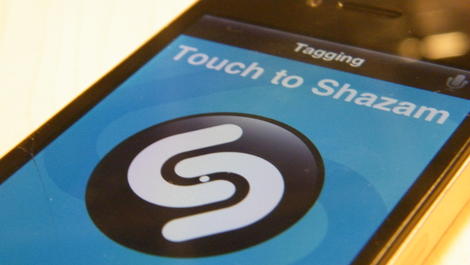 Shazam has decided 366 days don't need to pass to look back at 2012, as it announced the year's most tagged songs through its app Friday.
It seems Microsoft (through Shazam) made a star this year as Alex Clare came in at No. 3 in the U.K., four in the U.S. and landed sixth worldwide with 4.9 million tags for his song "Too Close."
Those who don't recognize his name or song might better know him as "that song in all of the Internet Explorer 9 ads".
According to Shazam, tags for "Too Close" shot up from about 10 per day to upwards of 10,000 a day when Microsoft's ads for the "more beautiful web" campaign started appearing in March.
Shazam has decided 366 days don't need to pass to look back at 2012, as it announced the year's most tagged songs through its app Friday.
It seems Microsoft (through Shazam) made a star this year as Alex Clare came in at No. 3 in the U.K., four in the U.S. and landed sixth worldwide with 4.9 million tags for his song "Too Close."
Those who don't recognize his name or song might better know him as "that song in all of the Internet Explorer 9 ads".
According to Shazam, tags for "Too Close" shot up from about 10 per day to upwards of 10,000 a day when Microsoft's ads for the "more beautiful web" campaign started appearing in March.
Not quite magic
Much like the web browser that Alex Clare's single was advertising, there were also much more popular picks on Shazam's top tag list. Gotye's lullaby "Somebody That I Used to Know" was Shazam's most tagged song of the year followed by quite a large margin Fun's "We Are Young." The results are similar to Spotify's year-end streaming charts, with essentially the same artists and singles appearing in a slightly different order. For example, Shazam bumped internet meme "Call Me Maybe" back to fourth place globally compared to Spotify's second spot. It just goes to show that people can have bad taste in music regardless of what app they use to find it.
| |
Available Tags:Google , Android , iPad , iPhone 5 , Apple , 4G , iPhone , IE9 ,


No comments:
Post a Comment