
Read More...


Email is a necessity of modern life, but for many
people, it’s also a major time suck, taking up hours each day and
sometimes even getting completely out of control. It doesn’t have to be
that way, however. Gmail has emerged as an incredible tool for
productivity, not just in email, but for communication, tasks, and more.
Check out our collection of great tips for making Gmail your ultimate
productivity tool for school, work, and beyond.
Speed Through Your Inbox
Even if you get massive amounts of email each day, it’s possible to get through your inbox in a matter of minutes, not hours, using Gmail’s productivity features.- Sneak peeks: Skip the step of opening emails if you just want to scan and find important messages. Get a sneak peek of messages by right clicking on the subject in your inbox.
- Enable Auto Advance: With Auto Advance, Gmail makes it go to your next conversation automatically, allowing you to get through messages faster.
- Enable Priority Inbox: Trust Gmail’s Priority Inbox feature to find the most important emails for you. Users report that with time, it actually is quite effective at finding the mail you really want to look at.
- Look for personal level indicators: Find out which emails were sent just to you by looking for personal level indicators.
- Achieve Inbox Zero: Delete, archive, and file messages away so that you’ve always got a clean slate to work from in your inbox.
- Select multiple messages: By using shift-click, you can select multiple messages at once and apply a group action, like deleting or adding a label.
- Use Rapportive: Using Rapportive, you can easily see the details of everyone you’re emailing with, right in your Gmail tab.
- Enable similar name suggestions: Allow Gmail to suggest different contacts when you’ve entered similar names, and make sure that you’re sending the right messages to the right people.
Search
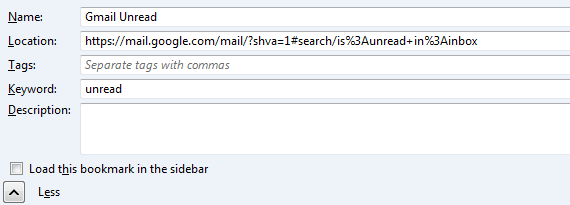
Use these search tips to find the messages you’re looking for with minimal hassle.- Unread messages: To find all of the unread messages in your inbox, search for is:unread in:inbox, and they’ll all pop up. For future speedy searches, you can set this search up as a bookmark in your browser.
- Take advantage of search options: Really narrow down your search and quickly get to what you’re looking for by using search options like date ranges, attachments, and keywords.
Filters
Filters are easily the single most productive feature that Gmail offers, allowing you to organize all of the messages you get, even doing so automatically. These tips will help you make the most of this feature.- Enable SmartLabels: Let Gmail figure out labeling for you with SmartLabels. You can always help it along if the feature needs to better learn your inbox habits.
- Get mailing lists out of your inbox: Avoid the clutter of mailing list emails in your inbox, sending them to specific folders, or a general mailing list folder to check out later.
- Send social media notifications to a filtered folder: Don’t let your inbox get bogged down with unimportant Facebook messages, just send them to a new filter.
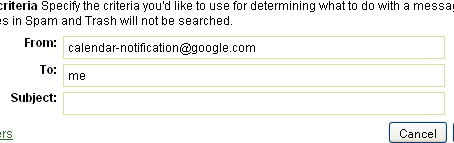
- Create an events filter: Set up a filter to send all Google Calendar events to a filtered folder to keep track of all the events you’ve got coming up.
- Filter forwards: If your aunt has sent you one too many pictures of cats doing cute things, cut it out by having Gmail filter out all emails with FW: in the subject.
Organization
Beyond filters, these tips offer even more organization ideas for your Gmail inbox.- Use stars: Mark a message as starred to indicate that it’s special, using Superstars for more star options as needed.
- Make Gmail your hub: Instead of juggling several inboxes in different services like Yahoo! and Hotmail, just send them all to Gmail and take care of them together.
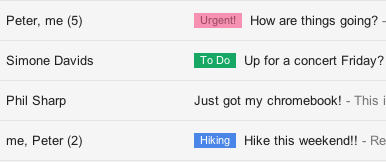
- Set labels: Remind yourself that a message is urgent or time sensitive with the help of labels that allow you to quickly scan your inbox.
- Back it up: Chances are, your email is fine, but you never know. Save your emails from a productivity-busting disaster by backing them up to your hard drive on a regular basis.
- Convert mail to Docs: Save email conversations in a Google Document with a simple conversion tool.
- Set up a Gmail Drive: Use Gmail Drive to use your email as an online storage space.
- Send & Archive: Keep clutter out of your inbox by using the Send & Archive feature, a great option for users who typically archive messages after sending anyway.
- Create a follow up folder: Be careful not to lose important emails that need to be followed up on later. Put them in a folder that you check on periodically instead of letting them get pushed further down in your inbox.
Tasks
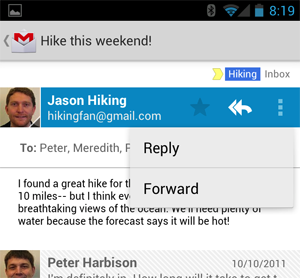
Check out these tips to find out how you can master your tasks using Gmail.- Access Tasks from your mobile phone: Turn emails into tasks, then take them on the go, accessing your list from gmail.com/tasks.
- Move emails to Tasks: Don’t let action emails linger in your inbox; send them to Tasks instead.
- Maintain a to-do list: Send yourself to-do messages and store them in a special labeled filter for an easily maintained to-do list.
Shortcuts
Learn how to use these shortcuts to speed through your Gmail tasks and navigation.

1 comment:
Hey, very nice site. I came across this on Google, and I am stoked that I did. I will definitely be coming back here more often. Wish I could add to the conversation and bring a bit more to the table, but am just taking in as much info as I can at the moment. Thanks for sharing.
Enerzal Sachet Orange
Energy Drink
Post a Comment