

Guide: Underclock for a quieter, cooler-running machine

The main advantage to downclocking is that it enables you to throttle back on your fan speeds. This in turn means that your machine doesn't produce as much noise as it would if left at the intended speed.
Downclock your processor enough, and you may even be able to get away with passive cooling – which is perfect if you're looking to build a media server for the living room, and don't want your films spoiled by the dull hum of fans.
It's a worthy goal aiming for the silent PC, and while the likes of the hard drive and PSU will add to the overall sound levels, it is definitely possible to go silent everywhere else.
You do need to be careful with this though – and may need an exhaust fan still, but being able to knock out any fans is worth while, and you'll soon notice the difference.
It's worth noting that underclocking is a lot more commonplace than you may think as well. Indeed it's the basis of Intel's SpeedStep and AMD's Cool'n'Quiet technologies, which are primarily used in laptops.
Whenever your laptop is unplugged, there's a good chance that it'll ease back on the clocks a little so that your battery life lasts that little bit longer and so the fans are running at full whack the entire time.
If your particular laptop processor doesn't support automatic downclocking itself, then following this guide can add to the stamina of your battery, and lift the pressure off the system fans at the same time. It's worth checking your BIOS for both technologies as well - use them if they're there.
1. If you've ever dabbled with overclocking, then you'll already be aware that you need to keep an eye on system temperatures as you tweak your processor settings.
When it comes to underclocking, you'll need to keep both eyes on those temperatures, as your machine won't be able to cope with a spike in temperature quite as easily. To this end you'll need a good way of monitoring your machine temperatures (not just your processor temperatures either, your whole system).

There are numerous tools available for this, but one that stands out for us is CPUID Hardware Monitor. Leave this running, perform the tasks you need on the machine in question, and you'll be able to see just how hot the various components in your machine actually get.
2. It's also useful to see just how slow your fan runs when you set it using the other tool you'll need when underclocking: SpeedFan.
SpeedFan gives you close control over your processor fan (among others), which enables you to ease back the speed at which it is spinning while monitoring overall system temperatures.

You will need to configure it though - click on the Clock tab and enter the details of your specific motherboard.
3. When it comes to actually setting your clock speeds, we'd still recommend altering settings in the BIOS. Underclocking the processor itself is fairly straightforward – just drop the FSB or the multiplier (if you can), apply the changes and you're done.

With underclocking there shouldn't be any worries about it crashing, failing to get into Windows or anything like that.
Just make sure your machines is still running stable by running a benchmark you trust the results of. We're using the CPU intensive X.264 encoding benchmark here, as we know that it pushes the CPUs to the limit.
4. Once you are happy that you're not sacrificing too much performance for your downclock you can pop back into the BIOS and set the fan speed to a lower level (or use SpeedFan if your motherboard is supported).
This is where a little trial and error is needed to make sure that you don't turn the fan down so low that it is literally throttling the performance of your CPU.

Again it's a case of tweaking the fan speed down a little (using the manual setting offered in your BIOS), rebooting into Windows and making sure it can handle it by stressing the processor again.
If the fan is still a little loud, then ease your processor back further until you are happy. Rinse and repeat until you've got the silent rig of your dreams.

 |  |
Read More ...
Review: Sharp BD-HP22H

Sharp has finally brought itself up to date with the release of the BD-HP22H, its first BD Live capable Blu-ray player, which is slim, dressed in a smart black finish and sports a snazzy silver ring in the centre of its fascia.
One notable absentee from the front panel is a USB port. This may not be a deal breaker, but the ability to plug in and play music, video and photos from a flash drive would have been a bonus, particularly as most of us have healthy collections of content on our computers.
There is a USB socket on the back, but this is used only for storage of BD Live and Virtual Package data. Several players now sport built-in memory, so the need to plug in flash memory is a pain.
The lack of Wi-Fi support is unsurprising for a budget player, but once again, the need to run a LAN cable between the player and your router might deter people from dabbling in BD Live.
The HDMI port offers 1080/24p output and bitstream delivery of Dolby True HD and DTS HD Master Audio. In the setup menu you can choose to output these formats as 7.1-channel LPCM if your receiver can't decode them.
The deck supports most disc types – including dual-layer recordable Blu-ray and DVDs – and will play JPEG, but data discs containing DivX, MP3 and WMA were unceremoniously denied. JPEGs take a while to load but are displayed in gorgeous hi-def.
While we admire the operating system's simplicity and overt user-friendliness, it's starting to look a bit dated. Hit Setup and the four groups of options are displayed in rudimentary, brightly-coloured graphics.
The settings menu is smartly laid out and we like the fact that each of the options is explained when you highlight them.
The remote is also agreeable to use, with comfortably placed menu controls and easy-to-spot playback keys. It also boasts a useful Keylock function that stops you hitting buttons accidentally.
Performance
There's a pervasive sluggishness about the BD-HP22H. Bringing up the setup menu, ejecting a disc or skipping through a movie causes momentary pauses that can frustrate over long periods.
It's also the slowest to load discs of all five players – it took one minute and seven seconds to load Spider-Man 3's first video after hitting close on the disc tray, which doesn't show any signs of progress over its predecessors.
However, images are packed with the sort of pin-sharp detail that really brings a movie to life, offering plenty of insight with movies such as Children of Men.
Key to this solid detail reproduction is the low amount of noise in the picture, which allows every pixel to shine through. Colours are rich and forceful, and the Sharp doesn't have any trouble picking out the subtle gradations of tone and shade within objects.
Decent contrast levels result in a rich and cinematic picture and it doesn't struggle to pick out objects during dark scenes either.
Its biggest flaw is some noticeable juddering on camera pans, but on the whole it's a fine performer.
Playback of 1080p DVD is solid if unspectacular, suffering from some jaggies along moving diagonals and noise buzzing around on large expanses of colour – but despite this it remains watchable.
Sound quality is fine too, with smooth, lively CD playback and rewarding HD audio reproduction, whether you've selected bitstream or LPCM output.
Related Links
| |
Read More ...
Review: Pioneer BDP-LX52

The BDP-LX52 uses Pioneer's patented blend of gloss black, ice-blue illumination and silver buttons to devastating effect.
And this isn't a deck you can slip discreetly into your AV stand, either, as its unapologetically chunky frame demands attention.
Looking at the rear panel, the biggest surprise is the lack of multichannel analogue outputs, usually a staple of Pioneer's Blu-ray decks. But that's no problem if you've got an HDMI-equipped amp.
BD Live should be easy to access, and, sadly, the wired Ethernet connection found here doesn't fulfil that brief. Wi-fi is the way forward, and we're hoping Pioneer will add it to its next generation of players.
You do, however, get 1GB of built-in memory, with the option to add more by plugging a flash drive into the USB port on the back. But you can't use this port to play back digital media, a feature Pioneer usually prides itself on.
The only way to do so is to burn files to CD or DVD, but thankfully the list of supported formats is a long one, taking in DivX, MP3, WMA, JPEG and AVCHD.
Owners of compatible Pioneer receivers can also take advantage of Precision Quartz Lock System (PQLS), which reduces jitter when playing back music over the HDMI connection by synchronising the digital clocks of both components. The LX52 enables you to use this function with multichannel LPCM as well as stereo, which is a first.
This is definitely an enthusiast's deck and that's reflected in the moody blacks and stylish onscreen graphics. The setup menu is packed with options that experienced users will love, including detailed user-defined tweaks that can be saved in three memory positions.
Despite this attention to detail, the LX52 remains generally easy to use, thanks to the excellent menu structure and immaculately arranged remote.
Performance
The Quick Start mode fires up the deck in eight seconds, but when loading Blu-ray discs, the LX52 shows no signs of improvement over previous models, taking a lumbering one minute and 10 seconds to load Java-heavy platters.
Picture quality is nothing short of sensational. The LX52 conjures up some of the sharpest and most substantial hi-def images we've seen from a player at this price point. Blacks are profound, while colours dazzle with a combination of strength and accuracy.
But it's with detail that the deck really works its magic. Viewed side by side with most of its rivals (except perhaps the Oppo BDP-831), there seems to be an extra degree of crispness and punch to fine textures and patterns, and edges look just a touch more definitive.
Add fluid motion tracking and jaggie-free diagonal lines into the mix and you've got yourself one seriously good picture performer.
The LX52 tackles audio with equal relish. HD audio tracks piped to an amp as LPCM are virtually indistinguishable from the bitstream, boasting equal levels of dynamism and detail, while music on CD is smooth and natural sounding.
So, grumbles aside about the lack of Wi-Fi and slow loading times; we think the LX52 is an exceptionally talented Blu-ray deck.
Related Links
| |
Read More ...
Vodafone 360 H1 phone available on pre-order
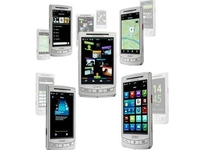
Vodafone has announced its flagship handset for its new 360 service - the Samsung H1- is available for pre-order.
The handset will be launching on 30 October, and is designed to bring together all your social networking and entertainment into one place.
Vodafone has created multiple levels for the 360 platform, from a simple application for entry-level applications to a complete OS for its handsets (such as the Samsung H1).
3D experience
The H1 brings a 3D experience for interacting with your 360 friends, allowing users to bring their best buds to the front for easy update viewing.

Being made by Samsung, the H1 has a 3.5-inc OLED screen like others in the Korean's range, a pretty large inbuilt 16GB memory, WiFi, GPS, and a 5MP snapper.
It won't be cheap though, with a Storm 2-a-like tariff of آ£35 and above for a two-year term with a free phone thrown in for good measure.
Point your browser to www.vodafone.co.uk/360 if you're interested in pre-ordering one, or point it to www.disapprovingrabbits.com if you want to see irked bunnies instead.
Search for the best phone deals at Omio

| |
Read More ...
In Depth: Which Windows 7 version should you buy?

Update: also see our Windows 7 Ultimate review and Windows 7 Home Premium review.
Maybe you've tried out the beta or the RC for yourself. You know Windows 7 is worth getting – but which version of Windows 7 should you buy? Isn't it crazy how many different versions there are?
Actually no; this time around, the different versions make sense because each new version contains all the features of the versions beneath them, so there are no irritating tradeoffs.
And the choice is really clear. Unless you need to join a network domain at work, use Remote Desktop to connect a work server, take files offline from a server, have some folders automatically encrypted or you want to automatically print to a different printer at two physical locations, buy Windows Home Premium.
Apart from this handful of extra features, plus an advanced backup that only works when it's controlled from a server, Windows 7 Professional only has one really useful tool – and you only need it if you give a lot of presentations. You can plug multiple monitors or a projector into any version of Windows 7; but only Professional (and versions above it), has the options to turn on Presentation Mode and then only on a laptop (you'll find it in the Windows Mobility centre, shortcut Windows-X).
This is the same feature as in Vista; when you're giving a presentation the computer stays on even if you leave it past the time when it would normally go to sleep; notifications, system sounds and the screensaver are temporarily disabled; and you can switch to a specific background image instead of whatever embarrassing picture you usually have up – in case you have to view the desktop to find a file. If you do present a lot, it's very useful, but it proves that only business users need to spend the extra on Professional .

WHICH VERSION? It's Microsoft marketing speak, but every version of Windows 7 really does suit a different market
Ignore Windows 7 Enterprise (it's only for large businesses) and Windows 7 Home Basic (because you can only get that in emerging markets like Brazil). You can't buy Windows 7 Starter Edition, either, but you might get it on a very cheap netbook if the manufacturer wants to keep the price way down by saving on the cost of the Windows licence; according to Microsoft's marketing materials, Starter Edition is aimed at "customers of small notebooks who might otherwise choose Linux".
Why you don't want Windows 7 Starter Edition
Unless the netbook you want is only available with Starter Edition, we'd say pick one with Home Premium instead – or pay for the Anytime Upgrade, which you can get online without re-installing Windows – because there's a lot of key Windows 7 features that aren't in Starter.
You don't get live thumbnail reviews on the taskbar, or any other Aero tools - like Aero Snap to arrange windows, Aero shake to hide other windows, Aero Peek to see the desktop quickly. You don't even get Aero Glass and the option to choose a personalised background.
Cheap netbooks don't have touchscreens so you won't miss that but you don't get Windows Media Center and you'll have to buy extra software to watch DVDs (Atom netbooks have no problem playing DVDs or running Media Center, so this is about price not performance).
You can't use multiple screens, share out your internet connection or switch between accounts without logging off. You can't create a HomeGroup (although you can join one if you've created it on another PC, and you don't need a HomeGroup if you only have one PC).
There are plenty of free sticky note tools so you won't miss that too much, but we reckon the Snipping Tool for grabbing sections from web pages and error messages is useful.
Put it all together and although these are nice-to-have rather than must-have features, there's so much missing from Starter Edition that it's not a good buy.
Why you don't want Windows 7 Ultimate
Frankly, neither is Windows 7 Ultimate. Originally Microsoft didn't plan to sell Ultimate except as an option on high-end PCs; we suspect that changed as much because PC makers weren't interested as because users were.
If you have Vista Ultimate, you don't have to upgrade to Ultimate – and we suggest you don't. There are no extras and you don't need Ultimate to get Media Center; if you want business and pleasure, remember – it's all in Professional.
Ultimate is exactly the same as the Enterprise edition, but you'll only need networking features like DirectAccess and BranchCache and Enterprise Search Scopes if you actually work for an enterprise (in which case, they'll give it to you).
Booting from VHD is useful if you experiment with different versions of Windows; again, that probably means you work in a big company. Otherwise there are only two reasons to even consider enterprise. One is multiple languages; if you need to change your PC back and forth between an English and Spanish interface regularly, you have to shell out for Ultimate.
The other is BitLocker and BitLocker To Go; encryption for your whole hard drive and removable drives respectively.
Frankly, we're surprised Microsoft hasn't put these features into the Windows 7 Professional; in fact, if you keep details like your downloaded internet banking statements on your PC the way the Inland Revenue expects you to (unless you want to kill the same number of trees at your own expense by printing the statements for your records), you'd probably like to encrypt your hard drive, too.
Perhaps Microsoft thinks BitLocker is enough of a feature to keep big companies shelling out for the Enterprise version, or it doesn't think enough small business users care about protecting their data to find BitLocker useful.
Apart from that, each Windows 7 version does have the right features; there's one version for home users, one version for business users and one version for making sure you don't have to spend time upgrading your cheap netbook to Windows yourself.

| |
Read More ...
Full-length Channel 4 shows coming to YouTube

It's official: Channel 4 has inked a deal with YouTube, which will allow shows like Peep Show and Skins on to the site soon after broadcast.
This deal can be seen nothing short of a landmark, as it marks the first time that YouTube will show long-form content regularly on the site – something it has been battling to do for some time.
YouTube is by far the most popular video-sharing site on the internet. Since it was bought by Google, the bods behind the world's favourite search engine have looked for ways to make money on the site.
This has meant that YouTube has quickly shed all (well most) of its non-authorised content and looked to sponsored content from the likes of Saturday Night Live and X-Factor.
This type of content, however, hasn't been long-form (full episodes) until now.
Quality British content
"Making our programmes directly accessible to YouTube's 20 million UK users will financially benefit both Channel 4 and our independent production partners and help bolster our investment in quality British content," explained Andy Duncan, Channel 4 Chief Executive to the Guardian.
"It demonstrates our ability to strike dynamic commercial partnerships to help underpin our future as a commercially funded, not-for-profit multi-platform public service network."
Channel 4 will not begin giving its shows to YouTube until 2010, and the deal is non-exclusive. This means that 4OD, its on-demand service, will remain. It also means that if the likes of Hulu UK and Project Canvas ever see the light of day, then Channel 4's content will be available.
It won't just be current programmes that will be available on the site, but archive content as well. So expect to see the likes of Brass Eye to become available to view online too.
YouTube is well-equipped to host VoD content, as just last week it announced that the site hosts 1 billion video views a day on the site, despite Google chiefs not finding a way to turn the portal profitable as yet.

| |
Read More ...
Hands on: BlackBerry Storm 2 review

RIM has finally announced one of the worst kept secrets in the mobile phone world with the BlackBerry Storm 2, and we managed to bag loads of face time with the new device.
It's basically an update to the original Storm, which debuted to mixed reception last year, and the obvious differences are fairly subtle.
The physical keys on the front have gone from individual buttons to being included in the touchscreen itself, although they are clickable.

EVOLUTION: The design of the Storm 2 apes that of the original
The Storm 2 has been made a lot sleeker than its predecessor, reducing the size of the device and recessing the 3.5mm headphone jack. Anecdotal evidence suggested the volume control buttons fell off the original Storm, and RIM has rectified this by placing them within the chassis as rubberised keys.

RECESSED: The headphone jack is now flush with the chassis
But the big change is to the clickable touchscreen - the SurePress technology which so divided opinion on the first Storm is back again, only this time it's been massively upgraded.

PHYSICAL KEYS: The keys are now part of the touchscreen, but a bit fiddly
Based on four internal mechanical sensors, it's a complete overhaul from the original SurePress, which basically had one large clickable button that the whole screen moved up and down on to register clicks.

TOUCHSCREEN: The accuracy on the SurePress screen is much improved
The new system is much better, and cooler too. When the phone is locked, the screen locks too, so it can't be clicked down when the Storm 2 is sleeping.

When activated, the travel has also been reduced too, meaning it's easier to push the screen down to enter text than before. Thanks to the four sensors, the Storm 2 can register multiple clicks at once, meaning pressing shift and a letter is much easier than before.

COPY AND PASTE: Selecting text is now even simpler, and multi-touch makes it a very accurate experience
The text auto-correct has also been improved, meaning you can pretty much mash your hand on the keyboard and think about what you want to enter and the words will appear as if by magic. It's not infallible as RIM would have us believe, but it's certainly a very useful tool.

And while the screen travel has been reduced, we're still not convinced by the whole premise. The experience is better, and the travel reduction is a good move, but the screen movement still feels a bit odd, and using it is still a bit of an effort compared to other touchscreens.

VIDEO: Playback looks great despite only packing an HVGA resolution screen
The buttons at the bottom are also a little flimsy, as not only do they not follow the rule of 'locked screen is immobile', but not being distinct means one handed operation takes a little longer than necessary.

The camera has been improved with a 3.2MP effort with autofocus and flash, making it an upgrade from the first Storm, but in testing it just looked like a fairly bog-standard picture from a cameraphone - clearly photography is not high on RIM's agenda.

Video playback on the HVGA screen is pretty darn good too, as is the music playback thanks to BlackBerry Media Sync being able to bring all your tunes across to the Storm 2 easily. The menu system for selecting tracks and videos is a little basic, but it was important RIM got the media experience right on its flagship touchscreen device, and it's largely done this.

Overall, the Storm 2 is very much an improvement over the original Storm, but it's evolutionary rather than revolutionary, despite overhauling the SurePress interface. We like the accuracy improvements, but we're still not sure the clickable screen is the next step in touchscreen evolution.
We can see why RIM is trying to push its handsets into the hands of consumers as well as business users, but at its heart the BlackBerry range is for email and messaging - and to that end you need a physical keyboard in our opinion to be truly successful.
Full web browsing and widescreen video are good, and the Storm 2 handles them with aplomb, but the likes of the Bold are always going to be better for RIM than the Storm range.

| |
Read More ...
Review: Windows 7 Home Premium

There may be six versions of Windows 7, but unless you need the business features of Professional or Ultimate, Windows 7 Home Premium is the version you want.
But what do you get in Home Premium and is it the right mix of features?
If you've been following the previews or even trying out the beta and Release Candidate test versions of Windows 7 over the last year, you've been using the full set of features – some of which will only be in the Ultimate edition.
Is Home Premium a let-down after that or has Microsoft managed to deliver the Goldilocks' porridge of consumer operating systems; not too basic, not too complicated, but just right?
As with our review of Windows 7 Ultimate, what we're looking at is the same code that you'll get when you buy Windows 7 (or a new PC), but without the final Media Center content deals, without the browser 'ballot screen' that will let you European customers choose between Internet Explorer 8 and various other browsers.
And also without the Device Stage experience and custom software that PC manufacturers will install for many of their systems.

The closer we get to launch, the more drivers are available; upgrade up a touch-enabled PC like the Dell Latitude XT2 to Windows 7 now and the multi-touch drivers will be installed automatically.
Whether you're upgrading your current PC or buying a new one, Windows 7 has to convince you to choose it instead of XP or Vista.
It has to stand up to Snow Leopard now, which is rather easier than it looked before Apple's latest upgrade actually launched, but also to the next two years of Mac OS, Android, Chrome and Linux releases.
And Windows 7 Home Premium has to prove itself as the natural successor to the ultimately-disappointing Windows Vista Ultimate – because given the price tag, Windows 7 Ultimate isn't always the best choice.
Windows 7 Professional has a good mix of key business features; but does Windows 7 Home Premium really give the home users a truly premium experience?

The look of Windows 7 is very different from XP or Vista, and the sleek interface isn't just eye candy; it's functional, practical and delivers better performance.
The large taskbar combines the pinned icons of the XP Quick Launch toolbar with full-size icons and the thumbnail previews of Vista, made extra useful because you can preview and manipulate them.
On the taskbar you can pin icons for programs next to icons for open documents and choose the order they appear in. Subtle design elements use highlights and outlines to show you which apps are running and which aren't, which have multiple windows, and which have been pinned so they'll stay on the taskbar and which will disappear when you close them.
Thumbnails are live windows and icons can animate, to show the progress bar for a download or an overlay indicating new messages or whether you're signed in to a service. It's all very slick.

If you right-click an application's icon on the taskbar, you get a jump list of previous files you've used with that program, with the option to close the app without switching to it; again this gives you a huge boost in productivity from a very simple change.
App developers can also choose to add extra commands; links to common tasks and features like your Outlook 2010 inbox or your favourite Windows Media playlists.
Web browsing
Assuming you choose it from the ballot screen instead of an alternative browser, Internet Explorer in Windows 7 doesn't have any new features over the version for Vista and XP.
What you do get with IE is a jumplist that lets you open a new tab or start an InPrivate browsing session; subtle but welcome integration if you actually use the Microsoft browser.

The InPrivate Browser mode lets you surf while not leaving any trace of your internet use when you close down the browser, whilst InPrivate Blocking prevents information being passed to sites.
More interface tweaks
Dragging windows into the corners to snap them to fit half the screen and using Aero Peek, to preview the desktop with outlines of open windows seem like small changes from the XP and Vista interface but they make you hugely more productive because you can find the window you want to work with and put it where you can see it.
Under the covers the new window management code has a significant impact on performance; you get the power and stability of the Vista graphics system (in XP a graphics driver crash will blue screen the system, in Vista and 7 your screen will go black and then come back to life) without the impact on speed.
As long as you have a WDDM 1.1 driver you can have large numbers of windows open without that alone slowing things to a crawl; opening new windows doesn't take extra memory.
Windows 7 doesn't nag you the way Windows Vista and XP do either; there are very few balloon notifications after the initial warning from the new Action Centre if you don't have anti-virus installed and the suggestion to set up a backup.
Instead, the icon for the Action Centre gets a flag when it has a message for you and all the other icons that used to fill the corner of the screen are tidied up into a pop-up notification area.
You can drag them back if you want them on show, but this finally solves the perennial problem in XP of the expanding notification area not showing or hiding the icons you asked it to.
The network connection icon is a menu for connecting to Wi-Fi (and 3G if you have a broadband card or dongle; with some 3G hardware you won't even need to install drivers); again, not having to delve through multiple windows as in XP and Vista saves a lot of time.
And another little convenience; you no longer have to choose between seeing the time or the date in the corner of the screen – the taller taskbar fits in both.
Under the hood
Similarities in the interface – and the fact that Windows 7 is built on code from Vista – makes it easy to think of Windows 7 as nothing more than Vista done right.
While it certainly fixes problems from the Vista RTM, Vista SP1 and SP2 also solve many of the most obvious issues in Vista.
Windows 7 is a much more ambitious undertaking that not only addresses the performance issues in Vista but does a lot to deal with the historical complexity of the Windows platform (and speed up many-core systems when they become common).
Kernel
The much-misunderstood MinWin may not contribute much to system performance; it's more about uncoupling the interfaces that programs use to work with Windows from the actual code in the lowest level of system files, to make it easier to replace code in the future.

Much more significant are the many places that Windows code has been rewritten to use fewer resources and work more quickly, the reduction in the size of the page file and the amount of memory used for window management, Direct2D acceleration, and the way that services aren't loaded until they're needed (and are unloaded from memory as soon as they're finished with.
So if you turn on Bluetooth, use it for five minutes and turn it off, the Bluetooth service is only running for those five minutes).
Reduced disk activity
The Windows 7 code also reduces the amount of disk activity needed for reading from the registry and aligns low-level system timers to stop the system switching inefficiently from one process to another, improving both performance and battery life on laptops and netbooks.
Other improvements target power management, turning off CPU cores that aren't needed – when you're not actively using your PC, the aim is to get the CPU doing as close to nothing as possible instead of catching up on system maintenance – and powering down USB ports, SATA drives and Wi-Fi cards.
The software and hardware that you use will have an impact on both power management and performance; if badly-written AV software is thrashing the CPU or loading lots of services, that will slow you down and chew up battery life.
Microsoft has talked about releasing tools to help users stay on top of any problems hardware and software may cause for performance, but it's a controversial issue as third-party developers are unlikely to agree with the assessment.
Windows 7 also delivers better performance in practice; our tests showed improvements over both XP and Vista SP2.
If you've been using the Windows 7 Release Candidate you'll be used to some of the performance improvements like the system not slowing down just because you have multiple windows open (this relies on the 1.1 version of the Windows Desktop Display Manager so you need WDDM 1.1 drivers – of the graphics chip manufacturers, only Intel is dragging its feet putting these out).

However, the RTM code strips out the debug code and adds a number of performance tweaks; we noticed that restarting from hibernation was considerably improved, especially on older ultraportable notebooks with small, slow hard drives.
Windows 7 system requirements
The system requirements haven't changed from what Microsoft announced earlier in the year; a 1GHz processor, 1GB (for 32-bit) or 2GB (64-bit) RAM, support for DirectX 9 graphics devices with 128MB of memory and 16GB (32-bit) or 20GB (64-bit) of free disk space.
The pre-release versions of Windows 7 have all run happily on netbooks and the final RTM version is no different.
Windows 7 on netbooks
As you can see from our benchmarks, we compared XP and Windows 7 on the Atom-based Asus EEE S101, which boasts a fast flash drive; this has an exceptionally fast startup (measured to the point that Windows is responsive to input) and shutdown times (measured without applications open) and in all cases where tasks took long enough to measure, Windows 7 was measurably faster than XP.

On our long-term Windows 7 test machine, the Dell XPS M1330, Vista SP2 gave the release candidate code a run for its money but the RTM improved on all the RC times but one test (copying a 3GB folder to a network drive), it equalled or easily beat the Vista times (See benchmarks from the Dell).

Built-in applications like Paint, Media Player and Movie Maker are routinely faster than in Vista (often by up to a third) and Media Center is significantly more responsive than the Vista and Windows XP versions.
Windows 7 and battery life
Battery life doesn't get a significant boost on all upgraded systems compared to Vista; you can expect to see bigger improvements in battery life on new systems of comparable specification as OEMs tweak settings in the power policy. Delving into the details will probably help you squeeze more life out of upgraded models.
With the Asus Eee PC S101, our battery rundown test of wireless web browsing and streaming music and video continuously showed a welcome improvement, from 2 hours 50 minutes under XP to 3 hours 2 minutes with Windows 7 RTM. Even more welcome is that fact that the reported battery life is usually close to what you actually get.
We didn't have a problem running any of the Windows 7 editions on netbooks, including Ultimate.
And while some manufacturers may shave pricetags by only giving you Windows 7 Start edition, we expect most netbooks to come with Windows 7 Home Premium.
We ran some real-world benchmarks on an Asus Eee PC S101 to see how Windows 7 matched up to Windows XP on low-end hardware. As you will see, Windows 7 is actually quicker in most cases.
Here are the results:


To properly put Windows 7 through its paces, we ran real-world benchmarks on a Dell XPS M1330 and compared the differing results between Windows Vista, Windows 7 Release Candidate and the final Windows 7 RTM version.
We timed both the Ultimate and Home Premium version of Windows 7 and as you'd expect, found no differences in performance.
Here are the results:


Windows 7 is much more insistent about asking you to back up your data, and unlike previous versions, every version of Windows 7 has a full backup tool.
In Home Premium you can back up and restore files, create a system image backup or burn a system repair disc.
Crucially, it's also easy to restore from an image backup on an external drive. System Restore is more reliable than in XP or Vista, and it warns you about programs and drivers that will be affected by a rollback
There is one option you don't get in Home Premium; you can't back up onto a network drive (that's only in the Professional and Ultimate version).
As home networks become more common this will be become a more of a limitation and it's about the only feature we think is really missing from Home Premium; Microsoft would doubtless suggest that you get a Windows Home Server system which will do network backup automatically.

The other network-related features that are missing from Windows Home Premium tend to make sense; they're business tools that belong in the Professional version.
You don't really need location-aware printing unless you take your PC to work (although it might come in handy of you regularly visit friends and family and want to print out photos for them).
If you need the presentation mode option of not getting notifications when you're running a presentation full screen, you probably need the other business tools like being able to join a domain, making network files available offline and encrypting files so Professional will be worth it for those; few home users would miss those.
You might want the Remote Desktop option of being able to leave your PC on and connect into it from another PC, but many home broadband connections make that difficult enough that we don't fault Microsoft for not seeing that as a home feature.
Neither Home Premium nor Professional users get the option to boot from VHD files; being able to run Windows without running the setup process is again mostly useful for developers and professional users.
But the one feature you can only get in Ultimate that we'd like to see as an option for home and business users alike is BitLocker whole disk encryption and especially BitLocker To Go, which encrypts removable drives automatically, so you can lock the USB stick you're using to back up your bank statements.
If you want features from another edition, you'll be able to unlock them without re-installing, using the Anytime Upgrade option (this won't be available until Windows 7 goes on sale, so we haven't been able to test it yet).
In fact, as soon as you look at the details of your system, Windows 7 suggests that you want to upgrade for more features; it's a little pushy but it does make it easy to find the upgrade option.

- As well as telling you what version of Windows you have, System information tells you what you can upgrade to

- You can buy an upgrade key online, enter it and unlock features without re-installing

- As well as new options in the Font control panel and an improved ClearType tuning tool, Windows 7 includes a new text system called DirectWrite that's much faster as well as offering better typography.
More than utilities
The Devices and Printers window gives you the option of automatically downloading photo-realistic icons for devices and drives; there are only a few so far, but it does make it far clearer what a random product number actually represents.
More usefully, you can right-click on any icon with a warning to run a troubleshooter. Windows 7 already has a wide range of these – and it will be updated automatically with new troubleshooters as they're released.
So far, there's a trickle of Device Stage support for devices like Sansa media players, Lenovo PCs and Epson printers; this is definitely a useful way of getting at all the features of a multi-function device, from storage cards to software updates, and we're hopeful that manufacturers will find it useful enough to build for the full range of devices.
You can use Windows Firewall in the simpler control panel mode, or as a full management console with advanced options; you can work with port and IP number ranges, create security rules and set a security profile for different network adaptors (and use them at the same time) – refinements that add up to much more powerful security, but still with a friendly front end.

- If there's a potential problem, you'll see a warning; run the Troubleshooter for fixes Windows can do for you
Parental Controls actually loses some features; you can still use it to control what apps children can use, what the age-rating on games has to be and how long they can use the PC for.
However, web filtering is now provided by Windows Live or other third-party security software which can now plug in to Parental Controls to add a much wider range of features.
Windows Vista introduced search from the Start menu as well as inside Explorer, for programs as well as documents, but it was often slow; the Windows Desktop Search 4 update in SP2 did improve this slightly but it still wasn't responsive enough to feel like a viable way to navigate the interface.
Windows 7 makes search significantly faster and as well as installed applications it now searches all the control panel settings, using synonyms to make it easier to find what you want.
If you're looking for the option to lock the touchpad into selection mode to make it easier to grab text on a long web page, you don't need to remember that it's called ClickLock – you can just search for 'lock' and it will be on the list of results.

- Search finds documents, applications and control panel items fast enough to replace hunting through folders and program groups
It also incorporates the OpenSearch protocol; Microsoft talks about this as a way of finding business documents on SharePoint sites, but with the right XML file to set it up you can search web services like Flickr (or Bing) from Explorer.
Search is what drives the new Libraries as well; they're a saved search across as many folders as you want.
Libraries sort your media and files so that you can view them all in one place, even if they're scattered across multiple folders on multiple storage devices.

- Libraries link multiple folders into a single logical container – and you can create your own libraries for organising any kind of file
What you get is a combined view of multiple folders at once, so if you have photos on your PC, on an external hard drive and on a NAS box you can see them all together.
This is the way media libraries in Windows Media Player have worked for a long time, but you can use libraries in any application. Business users may be forced by work policies to keep documents in logical places; libraries give you the flexibility to keep things wherever you want without the inconvenience of having to remember where you put them or spend hours re-arranging them.
Libraries get some extra tools for organising content, so the video library can sort files into full length and short clips while the document library has options like Author and Tag.
There's also a new Content view in Explorer that gives you mini-thumbnails and document metadata at the same time.
Other tweaks in Explorer fit more thumbnails into less space and put a New Folder and Preview Pane button on the toolbar all the time for convenience.
One handy Vista feature is still in Windows 7 but oddly it's turned off by default; check boxes to make it easier to select multiple files without accidentally losing everything you've already picked.

Other tweaks in Explorer fit more thumbnails into less space and put a New Folder and Preview Pane button on the toolbar all the time for convenience.
One popular Vista feature is still in Windows 7 but oddly it's turned off by default; check boxes to make it easier to select multiple files without accidentally losing everything you've already picked.
Windows Media Player gets a big makeover in Windows 7, including coming with key codecs like QuickTime and DivX rather than making you find and install them yourself.
It divides the interface into a main library window for choosing and organising media and playlists, an auto-sizing miniplayer for watching videos or photo slideshows and an even smaller thumbnail preview layer for controlling playlists when Media Player is minimised.
The miniplayer controls are all you need for music and short videos; this takes up a lot less space and still shows what you're listening to. It brings Media Player in line with more streamlined players like MPC and VLC.

- Send music to a digital media adaptor or another PC; here we can play to the bedroom radio or the stereo in the office
Media Player also gives you a very simple way to take your music and listen to it on another PC or any DLNA device, and to get at your music when you're out of the house. The new remote playing features are very simple to use; click on the Stream menu to set up streaming at home and over the internet.
You can right-click on any track or use the Play To button in the Playlist pane to play music on another PC – or a DLNA device like a Sonos ZonePlayer.
This integrates well with the new peer-to-peer Homegroup networking. If there's another PC in your homegroup sharing music or videos, you'll see it automatically inside Media Player's Library pane, along with other shared libraries and removable drives with music and pictures on. you can play any track form a shared library just by clicking it.

- There are three settings for setting up streaming (once you've joined a Homegroup); you can choose whether to share or allow remote control separately
Sharing and streaming media isn't complicated but you get the choice about whether you want it to happen.
You have to set up sharing music, allowing access to your library and your Play To targets separately, and you have to download and set up Windows Live ID (more providers may join this service by the time Windows 7 goes on sale).
At the moment the process for getting the ID you need is a little complicated and could be more streamlined, but the instructions are clear enough.

- If you want to play music from a PC at home when you're away, you need to set up an online ID; so far that's only Live ID
Even so, finding music elsewhere on your network and on your devices is a lot easier than in the past and streaming works well even over Wi-Fi.
The intrusive Sync dialogue that used to pop up every time you plugged in any storage device is gone; Microsoft says users can find the sync settings easily enough if they do want them.
Media Center
The Media Center application gets several of the Media Player improvements and its own interface is cleaner and simpler.

- Media Center uses the widescreen ratio of modern screens to good effect
Instead of demanding that you configure it, Media Center opens with a Getting Started dialogue that still lets you choose individual configurations if you don't want the defaults but also lets you skip all that and just start using media if you want.
As well as supporting gestures on touchscreens there are new navigation options when you're using a mouse instead of a remote: drag the cursor along the seek bar of a video you're watching and you get dynamic thumbnails to help you skip to the scene you want, although we didn't see this with all videos.

- With more codecs included out of the box, you don't have to install QuickTime just to watch the videos you've shot on your digital camera
If you have a lot of content, turbo scroll turns on automatically to jump through the alphabet as you move through lists of music and video rather than bringing up every title individually.
You can do the same with the TV Guide: keep scrolling and instead of going a program at a time, you can scroll through day by day.
Both Media Player and Media Center share libraries, so you only need to choose multiple media folders once. Media Center shares the new codecs so you can play a wider range of videos straight out of the box. And Media Center performance is far better than in the Release Candidate; no more stuttering video when you stream over your network.

- Add a folder to a library in Media Center or Media Player and you'll see it in the library in Explorer
We tried out the Windows 7 touch features on a Dell Latitude XT2 tablet (which currently comes with Vista).
Vista gives you single-finger touch for making selections and clicking buttons, with an on-screen 'mouse' that you can drag around to click the left, right and middle buttons, plus touch versions of the eight pen flicks – up, down, left, right and into the corners to scroll, copy, paste and so on.
Windows 7 gives you the same basic touch options and drag and drop, tapping and double-clicking is smoother and more fluid. But the on-screen mouse is turned off because Windows 7 is designed for the kind of multi-touch screen you get on the XT2.

- Finger painting on screen - you'll only do it for fun but it shows how responsive the multi-touch interface is
Install Home Premium and you get far more gestures and a much more natural interface (the correct multi-touch drivers for the N-Trig screen are installed automatically).
Swipe with your finger to scroll up and down through Web pages and long documents; it's much easier than using your finger to move the scroll bar, although you can do that if you prefer.

- Adjust how quickly and closely you need to tap if you want to use your finger as a mouse button
Panning, as Microsoft calls it, works in almost any app with a scroll bar but some – like IE 8 – have extra options like 'bouncing' the page to tell you you've reached the bottom of the document.
To stop it being tiring to pan through a long document, the inertia setting keeps the documenting moving just a little after you stop swiping, sliding slowly to a halt.
You can have the movement stop more quickly or carry on for longer by altering the resistance, or turn inertia off altogether. It's not immediately obvious what's most comfortable and efficient but it's very good to have these tuning options.

- Set the inertia to make swiping through documents with your finger feel natural
Swiping your finger from side to side flicks you backwards and forwards; very handy in Internet Explorer, although it seems very odd that swiping left to right takes you back and right to let takes you forward.
You can fine tune how long you can wait between two taps and still have it count as a double click, and how far apart the taps can be.

- The on-screen keyboard is big enough to type on and it offers context-sensitive suggestions to reduce the amount of typing you need to do
You can also set how long you have to press and hold on screen to get a right-mouse click – but you can also press with one finger and tap with another for right-click, which feels a little more fluid again.
The usual multi-touch gestures are rotate and zoom. Apps need to be written specially to understand two-finger rotate; we tried it in Windows Live Photo Gallery and the new Corel Digital Studio 2010 and it worked well. You just twist your fingers in the direction you want the image to rotate and around it goes.

- Windows Live Photo Gallery lets you rotate images by twisting your fingers, and zoom by pinching them
Windows will try to zoom a document in any app if you use the pinch and drag gesture; with the latest
drivers this works very smoothly in Internet Explorer, Word, Photo Gallery and Excel and only a little more jumpily in WordPad.
In Explorer you can change the size of thumbnail images by pinch-zooming. This is nice integration of touch with the rest of the user interface (although you can't pinch-zoom in Paint – instead you can paint with multiple fingers at once). Similarly, you can get jump lists by dragging your finger up over the taskbar icon – touch really does get full support.
The new on-screen keyboard is much larger and has better spacing; you wouldn't want to write an essay with it, but if you're using a tablet with the keyboard folded away (or a UMPC with no keyboard) you can easily tap our URLs and search terms.
The ribbon interface in Office, WordPad and Paint works well with touch too, because the buttons are big enough to tap easily. Generally, touch works even on standard menus and buttons, but as touch screens become more common, expect to see more touch-specific software and Web sites - the next version of the Flash Player, 10.1, will support Windows 7 multi-touch gestures, as will AIR 2.

Now that Windows 7 is over the finish line, it's clear that Microsoft really has delivered on its ambitions. Windows 7 includes all the features that were promised, with the performance you need, wrapped up in an interface that makes them easy to find and use.
These range from the trivial but popular personalisation options to the clearly useful tools, like built-in 3G and GPS support, native ISO burning and remote streaming, to significant work under the hood, including significant performance improvements.
There's no confusion over which version to buy for what features and apart from network backup there are really no features missing from Home Premium that a home user would actually use.
We liked
Windows 7 is a modern operating system with an attractive but functional interface, a host of new features that do what home users need and excellent performance.
We disliked
Performance and battery life can be hampered by poor settings in third-party software and hardware, and Microsoft hasn't included a tool to warn you about such problems.
Legacy dialogues still lurk in some corners of Windows 7, and multi-monitor support, while improved, still has too few options. And if home networks are common enough to make media streaming useful, they're common enough to use for automatic backup.
Final verdict
Windows 7 combines the security and architectural improvements of Windows Vista with better performance than XP can deliver on today's hardware.
No version of Windows is ever perfect, but Windows 7 really is the best release of Windows yet and Windows 7 Home Premium is the right version for home users.
Related Links
| |
Read More ...
Sky Player coming to Fetch TV in 2010

Sky has announced a new deal with IP Vision, which will bring its online TV service, Sky Player, to Fetch TV.
For those not au fait with what Fetch TV, well let us divulge. Fetch TV is a set-top box, created by IP Vision which brings Freeview recording to your home plus a whole host of downloadable online content.
The deal means that in 2010, Fetch TV customers will be able to access the Sky Player, and with it channels such as Sky Movies and Sky Sports.
Free to Sky subscribers
Sky has informed TechRadar that Sky users will be able to access the player at no extra cost based on their core subscription, while non-Sky customers will be able to sign up to a choice of TV packages via a monthly subscription paid directly to Sky.
This week, Sky also announced that Sky Player will be available to Xbox 360 users as of 27 October.
"Sky is committed to offering customers more ways to access our content and our agreement with IP Vision represents an important step in that process, said Griff Parry,Director of On Demand, BSkyB.
"Offering Sky Player through the Fetch TV box gives UK consumers yet another way to experience Sky content, complementing the services already available on satellite, PC, games consoles and mobile."

| |
Read More ...
Dell founder hits out at netbooks

In something of an unusual marketing strategy, Dell founder Michael Dell has criticised netbooks – insisting that after a honeymoon period, most laptop users are desperate to get back to a big screen and fast processor.
Dell's 'mini' series has done well for the company in the netbook arena, but it appears that Michael Dell is not a big fan.
"If you take a user who's used to a 14- or 15-inch notebook and you say 'Here's a 10-inch netbook,' they're gonna say 'Hey, this is so fantastic. It's so cute. It's so light. I love it,'" said Dell.
"But about 36 hours later, they're saying 'The screen's gonna have to go. Give me my 15-inch screen back'.
No satisfaction
"We see a fair amount of customers not really being that satisfied with the smaller screen and the lower performance - unless it's like a secondary machine or it's a very first machine and the expectations are low," he added.
"As a replacement machine for an experienced user, it's not what we'd recommend. It's not a good experience, and we don't see users very happy with those."
Obviously there is a greater profit in full-size-laptops, but Dell's comments certainly ring true.

| |
Read More ...
New interactive high-def Holy Bible launches

The new Glo Bible launches this week, an interactive 'e-Bible' device that features high-resolution photos, virtual tours of well-known biblical stories and locations and a publicity campaign targeting young people.
The Glo Bible is set to cost آ£59.99, with Glo clearly hoping to appeal to digital generation teens and youngsters. The developers are also preparing mobile phone and web-based versions of the Glo Bible for release at some point soon.
The interactive bible claims to "brings God's word to life" featuring 2,382 high-resolution photos, 7,500 articles, 463 virtual tours, 3.5 hours of high-definition video and 689 works of art.
Glo Bible targets the young
The Glo Bible is the brainchild of former aeronautical engineer Nelson Saba, who told the Guardian:
"There is nothing wrong with the Bible but we have two generations which favour interactive media. Unless you put the Bible on that media you won't connect with them. It's not about mimicking paper. It's about offering an experience."
"We did focus groups with people aged between 20 and 50," adds the Glo Bible creator. "We asked how they felt and what frustrations they had.
"The older group were more engaged with the paper Bible, but a lot of what we designed addressed our findings. It's about being efficient and relevant, and even people who are nominal in their faith still have a reverence for it but they were challenged in finding what they needed.

| |
Read More ...
CryEngine 3 trailer shows stunning future

When it comes to spectacular visuals in gaming, Creytek is a firm fan-favourite and a new trailer for the CryEngine 3 has left TechRadar agog.
The original CryEngine was the basis of first person shooter Far Cry, moving from a tech demo to a best-selling game.
Crytek announced the third incarnation of the CryEngine at the GDC back in March, and it is expected that Crysis 2 will be a game to take advantage.
"Having seen the new CryEngine in action, all I can say is 'wow'; it truly is a thing of beauty," said PC Zone editor Ali Wood.
"Crysis firmly and confidently set the standard on PC and its testament to CryTek's vision that the latest groundbreaking development tools are set to raise the bar yet again. Whether you're going to be developing using the CryEngine or reaping the fruits as a gamer, there's a lot to get very excited about. The Next Gen suddenly feels a lot closer than it did yesterday."
The trailer – focusing on both consoles and PC – is awash with goodies for graphics geeks, and we especially like the drop through the trees early on.

| |
Read More ...
In Depth: 6 of the best budget monitors for your Mac

Unless you only use an Apple notebook or iMac, you need a monitor to go with your Mac. Today's flat-panel models are light, slim and take up very little room on your desk.
They're easy to connect to, with the growth of DVI as a standard ensuring cross-platform compatibility for almost any display. But which do you buy?
You can spend a small fortune on a monitor (especially if you insist on an Apple display), but you don't have to. You can buy a perfectly good monitor that does everything you ask of it and still have change left in your wallet; Mac users are not restricted to Apple's displays.
But even though any off-the-shelf monitor will work with your Mac, it's important to buy the right display for you. As with most modern technologies, a little thinking time before making a purchase goes a long way, and can do much to minimise the risk of a costly mistake.
First you need to assess what you will be mainly using it for. If you do a lot of design work, a display with a wide colour gamut is essential. If you watch a lot of movies, go for a widescreen model, and ask yourself whether it needs to be HD-capable. If space is not an issue, a 19-inch screen with a 4:3 aspect ratio is a good option.
This month's Group Test looks at budget models from six top manufacturers, with the most expensive coming in at آ£170. From design to sound we put them through their paces. Let's see how they got on…
All the displays feel robust and can be tilted vertically for comfort, but to rotate horizontally, you have to turn them on the spot. The NEC deserves commendation, as you can adjust its height as well.
Some displays (Hanns G, LG) keep the controls out of the way for aesthetic purposes, while others (NEC, BenQ, Asus) have them on view.
The Samsung's side-mounted buttons are labelled with an on-screen graphic when in use, giving the best of both worlds. The Hanns G looks best, with a matt black finish and no obtrusive distractions.

ASUS VH222H
The LG's shiny black finish with clear plastic details gives it an unusual look. It features an interesting means of switching it on too; a droplet of clear plastic recognises your touch. However, it's easy to snag when you operate the buttons on the side and can accidentally turn off the display.
Incidentally, each monitor in the test features a black design. We let the manufacturers choose what to send us and it seems black is in!

The angle from which you view your screen can affect the brightness and cause colours to shift – especially if the angle is too steep. But how steep can you go?
Be sceptical of manufacturers' figures. A stated viewing angle of '170آ°/160آ°' means, in theory, you can view the display from anywhere within a 170آ° arc on the horizontal plane, and 160آ° on the vertical (180آ° is the theoretical maximum), but they might deem a significant amount of distortion acceptable before finally drawing the line.

SAMSUNG SYNCMASTER 2233SW
The Asus offers good horizontal angles, but is less accomplished for vertical viewing. The screen loses its brightness soon after moving away from the head-on position, but manages around 100آ° before the colours degrade.
The BenQ puts in a similar performance, though is marginally better. The Hanns G is less accomplished. The NEC puts in the lowest claim, but it isn't that far behind the pack. The Samsung performs best with the widest angles.

Next it's time to check whether the entire display is consistently lit, showing no light or dark patches when viewing a single-colour screen.
You'd hardly expect a budget monitor to perform to the same standards as an OLED-lit high-end display, but overall, all the models tested here perform well, but all lost consistency when viewed at an angle.
The Asus and BenQ monitors are the worst, with noticeable light and dark patches throughout. They're not disastrous, but the others are all better.

BENQ E2200HD
The LG's lighting is stronger in the centre of the screen, with the Hanns G and the NEC offering small darker patches, but nothing too drastic. The Samsung is the best here; it has the same problems but they're not so noticeable.
It must be noted that while none of the displays offer a perfect degree of consistency, anyone who finds the results unacceptably poor probably shouldn't be looking for a budget monitor.

Some monitors fail to distinguish between 95% and 100% black at one end of the greyscale ramp, and 5% and 0% at the other.
You might expect a budget monitor to struggle with this, but the LG, NEC and Samsung displays cope well.
The BenQ, Asus and Hanns G models get through the near black test but have less success with the almost-white one.

HANNS G Hi221DP
Even after calibrating the Asus to get rid of the over-saturated colours, the screen was dark, even at maximum brightness.
The Hanns G, LG and Samsung models offer the best reproduction, with smooth gradients and clear images.
None of the monitors excel in our text test. The Samsung is the strongest, but is still unremarkable. The LG and NEC offer passable reproduction, with the others less clear, especially at low point sizes.
The Hanns G would benefit from a wider adjustable contrast range. On maximum setting it's just about right, but there's nowhere to go if you want more.

The two displays with no built-in speakers (LG and Samsung) automatically score a zero. And the ones that do offer this feature are dreadful.
If you're looking to buy a monitor at the budget end of the market, and intend to use it for anything more sonically challenging than system bleeps and audible notifications, we recommend you factor in the cost of a set of speakers.
The four monitors with built-in speakers all offer weak, flat sound with very little definition and character. The NEC is barely audible, which is almost a blessing considering how bland and lifeless our test tunes sound.

NEC MULTISYNC LCD195VXM+
The BenQ offers no power at all, and an audio quality reminiscent of catching the overspill from someone else's iPod on a particularly miserable train journey.
The other two are better, but barely so. The Asus is tinny, very flat and lacking in bass and definition, and although the Hanns G offers a marginally more rounded sound, it is still like listening to a stereo playing in the next room.

On paper, the Asus and BenQ models are two of the better displays on offer, but in our tests they are more workmanlike than wonderful.
The LG performs better, but it is the most expensive monitor in our tests, and if you make regular use of your display's control buttons (as opposed to setting it up once and then forgetting they exist), the touch-sensitive power button will drive you insane as you constantly switch it off by mistake.
The Hanns G Hi221DP is a bargain; it's a solid performer and good looking too.

LG FLATRON W2284F
The NEC's 19-inch screen and 4:3 aspect ratio make it a poor choice for a primary monitor, but an excellent choice for a second display if you favour the two-screen setup.
Finally, the Samsung offers excellent value for money. You need a separate speaker setup, but given the audio quality of the displays that offer integrated speakers, that's not such a bad idea whichever model you go for.

The displays are evenly matched, but Samsung's SyncMaster 2233SW wins by a narrow margin.
Although it scores highest or joint-highest in four out of our six tests, its victory isn't as convincing as one might imagine, with its supremacy hotly contested in every category.
The SyncMaster 2233SW offers true HD resolution. Unlike the other two HD monitors, the Asus and the BenQ, it doesn't have a HDMI input, but as no Mac uses HDMI anyway, that's not really relevant here.
It's the second-lightest monitor on test, and also the second cheapest (according to an average based on Froogle prices).
SAMSUNG SYNCMASTER 2233SW
The Samsung SyncMaster 2233SW scores zero in the sound test as it doesn't offer built-in speakers, but standards were dire across the board.
If you're buying a budget monitor and intend to use Front Row or iTunes, you'll be wise to invest in an external speaker system.
Runner-up is the Hanns G. Its resolution might not be as high as some of the others, but it boasts one of the better screens.

| |
Read More ...
Review: Packard Bell EasyNote NJ65-AU-020UK

Packard Bell's rejuvenation, following its acquisition by Acer, continues apace. The EasyNote NJ65-AU-020UK is further evidence that the company is heading in the right direction and it is a great all-round machine with good performance and a unique design.
The 14-inch screen is a pleasure to use. The 1366 x 768-pixel resolution provides an especially detailed image, while colours are vividly reproduced.
The 16:9 aspect ratio also makes the laptop suitable for viewing your favourite movies, but the Super-TFT screen coating is extremely reflective in bright or changing light.
A honeycomb-effect adorns the lid, making it stand out in the crowd, and we were surprised that, despite its shininess, the lid didn't attract too many fingerprints or too much grime.
The chassis is constructed from hard matt plastics and features a line of touch-activated hotkeys that give you quick access to various applications, including a My BackUp key for saving your data to an external drive.
The keyboard is the only part of the machine that slightly disappoints. It has been mounted on to the chassis at its edges and, therefore, isn't supported in the centre, which causes quite a bit of flex. It isn't a deal-breaker though and you'll still be able to type fluidly without too many issues.
The touchpad is large and responsive, while the large, dual-click mouse button looks great, having been embossed with the Packard Bell logo.
Pentium processor
An Intel Pentium T4200 processor is joined by 3072MB of memory and the result is surprisingly sprightly performance. You'll have no problems running and multi-tasking office applications, but resource-heavy multimedia programs will struggle.
The integrated graphics card means that, if you try to run complex photo and video editing suites, there won't be enough 3D power for them to work smoothly.
The 320GB hard drive is generous at this price and will hold all of your digital content, while providing a degree of future-proofing. The optical drive is also capable of reading and writing DVDs.
Highly portable
Portability is another strength. The weight is only 2.4kg and the battery lasts a decent 230 minutes between charges.
802.11n Wi-Fi provides the fastest wireless networking currently available, while Gigabit Ethernet is sufficient for high speed wired networking.
Three USB ports are in place, and VGA and HDMI ports let you connect to both analogue and digital external monitors and projectors.
We like the EasyNote NJ65-AU-020UK a lot. It's stylish, usable and will provide enough performance for the average user, at a price that's right.
Related Links
| |
Read More ...
Logitech Gaming Keyboard G110 unveiled

Logitech has announced the follow up to its popular G11 gaming keyboard, with the G110 bringing a host of functionality for gaming fans.
The G-series of peripherals has become a firm favourite with gamers, and the latest addition to Logitech's range looks likely to continue that trend.
Customisable backlighting means you can match your colour to your mood – or complement your neon gaming rig.
G to the M to the...
There are 12 programmable 'g-keys' and three M keys that can also have their own colours to make them easy to find plus automatic game detection and game switch mode.
Majorly useful is the USB port and headset inputs on the keyboard, which should aid in decluttering or having to fish around the back of your PC.
The Logitech Gaming Keyboard G110 will be out in the UK in January, at a suggested retail price of آ£79.99.

| |
Read More ...
Sony Bravia Internet Video TVs coming 2010

Sony has announced that its web-enabled Bravia TVs will be coming to the UK in 2010.
Previewed at this year's IFA conference, the Bravia TVs have web connectivity and utilise Sony's rather excellent XMB (as seen on the PlayStation 3) for navigation.
Speaking at Screen Digest's Future of Online Media Distribution seminar, Sony's European Technology Senior Manager Tim Page announced: "Next year, we will launch Bravia Internet Video".
It was at the conference that Page also revealed Sony's stance on Project Canvas.
YouTube announced
It's unclear who the exact content providers will be when Bravia Internet Video launches in 2010, but Page did reveal that 40 providers have signed up to supply content via the web.
He did name-check some providers, however, explaining that Five, YouTube, Flickr, and Dailymotion were all on-board.
Prior to this, it was only Five's on-demand service which had been announced for the UK.
2010 is going to be a busy time for Sony. The company also plans to release 3D-Ready Bravia TVs next year, in preparation for the Blu-ray 3D standard.

| |
Read More ...
Review: Asus UX30

The Asus UX30 is the second Consumer Ultra-Low Voltage (CULV) laptop we've seen but, unlike the Advent Altro, this machine is aimed at the top end of the market.
It's one of the thinnest machines we've seen to date – measuring just 24mm at its thickest – and the design is stunning.
The brushed aluminium lid gives it a premium feel and the high-end theme runs throughout.
All of the plastics are high in quality and it's surprisingly tough considering the thin dimensions. It's also light – at 1.5kg – making it a great companion for the daily commute.
The 13.3-inch screen is impressive, with strong colours and LED backlighting delivering high brightness levels. The 1366 x 768-pixel resolution results in crisp images, and there's easily enough space to view two documents side by side, browse the internet or watch movies in their native resolutions.
It is a highly reflective panel, however, so you'll need to turn up brightness settings to get the best out of it on the road, which impacts on battery life.
During our benchmarks, however, it ran for an excellent 334 minutes.
Stylish design
With an inch of space on each side of the keyboard, the keys are smaller than many rivals, but it offers great usability nonetheless. Each key moves accurately and responsively, and decent spacing makes it easy to type at speed.
Our only criticism is a relative lack of travel, although this will suit many touch typists. The touchpad is one of the largest we've seen, offering equally impressive usability.
The svelte design is maintained by having all the ports hidden behind plastic flaps. It turns out to be reasonably well equipped – aside from a lack of optical drive. Three USB ports are included, while HDMI and mini VGA ports let you connect digital HD and analogue displays.
Network connections are equally comprehensive, with 802.11n Wi-Fi, Ethernet and Bluetooth included – although a mobile broadband connection is omitted.
CULV processor
Unlike the much cheaper Advent Altro, which uses a budget Intel Celeron processor, the UX30 features a cutting edge Intel Core 2 Duo SU9400 chip.
Running at 1.4GHz, it's specifically designed to be used in thin ultraportables. It's not as quick as regular Core 2 Duo processors, but its two cores allow it to multi-task efficiently, and it's further helped by 4096MB of memory.
With its stunning design, usability and quality, the UX30 is easy to like. It's underpowered in comparison to rivals such as Apple's MacBook Air – although it's also cheaper – but if you're after something for the commute and place style over speed, it's worth a look.
Related Links
| |
Read More ...
Spotify reveals new 'buy MP3' button

Spotify has made a major improvement to its music buying feature this week, introducing a clear Buy button next to tunes in your playlists, or a 'Buy Album button' below the cover artwork on albums.
The timing of the MP3-purchasing upgrade is significant, what with Sky set to introduce its own music streaming and download service, Sky Songs, next week.
When you hit the Buy button on Spotify it opens up a window within Spotify itself to let you buy the MP3 of the tune, which you can then choose to either play within Spotify or, being DRM-free, on any digital music player you so wish.
Freemium stimulation
In summary, Spotify's MP3-buying improvements include:
* Buy without leaving Spotify: previously users needed to complete a number of steps before being directed to purchase music from our download partner 7digital's site. They've made this a lot simpler - you can now own a song in a few clicks from within Spotify.
* Better visibility: up till now, users had to right-click on a track/album to discover if the music was available to buy. Users can now see exactly what music is available, with special little 'buy' buttons now visible either underneath the album cover or next to a particular track.
* Playable within Spotify: all Spotify MP3 purchases are now available to play on the service - check out the 'Purchases' button on the Spotify sidebar - and of course can be transferred to any other MP3 player, program or burnt to a CD.

| |
Read More ...
Sony 'not decided on Project Canvas'

Sony has been speaking again about its stance regarding Project Canvas, and admits it is still undecided about whether it will allow its Bravia TVs to be compatible with the BBC's service.
Sony has been reticent to accept the BBC's plans. Speaking in July the company admitted it had reservations, with Sony UK's CEO Steve Dowdle saying: "[With Canvas] we are limited to boxes which frankly may engage or may not; the BBC or other terrestrial [content providers] may say 'actually I can't afford to do it with all of you so I'm picking you or you'.
"It's very UK specific and that will drive up price. It's good for broadcasters, but for manufacturers, retailers and customers I'm not so sure."
Not decided
Speaking at Screen Digest's Future of Online Media Distribution seminar, Sony's European Technology Senior Manager Tim Page, admitted the company is nowhere near coming to a decision, explaining when asked if Sony will adopt Canvas: "Next year, we will launch Bravia Internet Video. [As for Canvas] we're not decided yet. We're looking at all sorts of players from all sorts of providers."
He also made clear the problem was: "How do you combine all kinds of services in an easy to use EPG? We're open to suggestions."
As for other companies embracing the BBC's web TV idea, Sky was also at the conference, where Sky VOD director Griff Parry said the company was open to the idea, noting: "I try to think positive about it - but I need to feel confident that content discovery and UI works properly and we'll be able to protect our content. There are a lot of questions for us - but it is a potential opportunity."

| |
Read More ...
In pictures: Google Wave on iPhone

Google Wave is already up and running on the iPhone, with the lucky few that got invites able to access the next generation communications and collaboration tool through their handsets.
TechRadar has had a fairly lengthy play with the service on iPhone handsets, and, although it is a little buggy (and frequently kicks you back to the 'your browser isn't supported screen') it runs perfectly well as an app.

Google has already enabled most of its services to run in a mobile 'm' app when accessed through the iPhone or other smartphones.
Thus, webmail service Gmail, Reader and the search engine itself run in a mobile format through the browser which is much like a standalone app.

Wave itself is in its early stages on PC screens let alone through a mobile device and it does show, with things not running particularly smoothly.
The text waves seem to work okay, although it's not as real time as the full screen version.

So here's a few picture of the service, and we'll be keeping you updated as things are turned on, both in the mobile and full versions.


| |
Read More ...
Preview the Windows 7 Family Guy episode
Family Guy creator Seth McFarlane is to promote the wonders of Microsoft's Windows 7, with a specially created version of the show.
Tentatively titled 'Family Guy Presents: Seth & Alex's Almost Live Comedy Show,' a short preview of the show has been posted to YouTube, which shows Stewie using Windows 7 while Brian looks on.
Watch it below...
The deal was made with Fox, the production company behind the hit show, and will be part of a Seth McFarlane night on Fox's US channel.

| |
Read More ...
Review: Netgear 85Mbps Powerline adapter

The Netgear 85 Mbps Powerline Switch Kit consists of two adapters, two Ethernet cables and documentation.
The adapter is made of white and grey plastic and has the same styling as Netgear's other home networking products.
Three reasonably large and bright LED lights are in place that signify when the device is plugged in, connected and secure.
Setup is incredibly easy, as you simply plug the Powerline in and the first LED light signals whether the connection is made. Unlike some other plugs, you won't find a hardware security connection, so you'll need to set up the supplied software to change the default encryption settings.
Four port powerline
The Powerline is referred to as a Switch Kit, while other devices are Starter Kits. This is because, unlike the other devices that all have one Ethernet port, the Netgear comes with four.
This means you can easily add four machines in one room to the same connector, which makes it a cost-effective solution if you need to hook up a laptop as well as games console, for instance.
You'll find there are two ports on either side of the device, which we thought may cause trouble when using the plug in twin wall sockets. Thankfully, the Powerline is quite bulky and the design means the ports sit below the plug socket – something worth considering if you have skirting board-mounted wall sockets.
The main disadvantage with this powerline adapter is in overall throughput, and you'll find the Netgear tops out at 85Mbps, as opposed to the 200Mbps on offer from the latest breed.
The Netgear 85 Mbps Powerline is starting to show its age and lacks the latest Powerline speeds and security options. However, if you're looking to add more than one device to a network, it is a reasonable choice.
It doesn't offer the fastest throughput and you won't be able to use it for streaming HD content, but it is versatile and easy to use.
Related Links
| |
Read More ...
Review: Tumblr

Tumblr has fast become one of our favourite blogging tools, mostly due to its easy-to-use publishing system and unobtrusive social media features.
Like the other blogging services we have reviewed recently, if you sign up for Tumblr you'll get your own subdomain. Unlike the other tools we've covered, though, you won't be ashamed to use it.
The out of the box templates are clean and tasteful and can be customised easily. Even better, there are no widgets on the page telling users what service they're working with.
Digital scrapbook
Tumblr describes itself as more of a scrapbook than a blogging system. Like Twitter, you can follow other users and view a stream of other people's posts using your own template.
The simple publishing model adds one entry per page by default. Users can navigate easily back through previous posts if they like.
Tumblr is also optimised for visual content, and the system makes it very easy to quickly post media snippets, audio, video, photos or plain text.
In all, it's the perfect blog system for the more concise, more media savvy poster.
Related Links
| |
Read More ...
New Wi-Fi standard takes on Bluetooth

The Wi-Fi Alliance has dropped details about a new Wi-Fi specification which is to take Bluetooth head-on.
Called Wi-Fi Direct, the standard allows for peer-to-peer connection between devices even if there's no Wi-Fi router present.
"Wi-Fi users worldwide will benefit from a single-technology solution to transfer content and share applications quickly and easily among devices, even when a Wi-Fi access point isn't available," explained Edgar Figueroa, Executive Director for the Wi-Fi Alliance, about the new spec which is said to ship sometime in 2010.
Easy to use
Wi-Fi Direct will allow connection between numerous things, like PCs, printers, phone handsets and cameras.
Speaking to the BBC, Wi-Fi Alliance's Marketing Director, Kelly Davis-Felner: "This is going to be a quick and convenient way to use Wi-Fi in future to print, synch, share and display.
"The consumer is going to experience this as a very easy-to-use mechanism that will be quite seamless."
When launched, Wi-Fi Direct will be up against the likes of Bluetooth, which allows the exchange of data between devices within a short distance.
Wi-Fi Direct adds speed to this equation, with mooted transfer times of up to 250Mbps. Bluetooth currently tops out at 11Mbps.
Let the connectivity battle commence!

| |
Read More ...
Google, HTC and Stephen Fry win big at T3 Awards 2009

T3, the gadget magazine, held its annual awards bash in London last night, where it lavished praise on the good and the great of the technological award.
Run by the same publishers of TechRadar, and hosted by radio personality Johnny Vaughan, the T3 Awards were bigger than ever this year, with a whole host of celebrities and technorati turning up to the event to see which gadgets won on the night.
One person who couldn't be there to accept the award but did so through a pre-recorded acceptance speech was Stephen Fry – who T3 voted Tech Personality of the Year.
Impressed with the accolade he even Twittered he had won once the announcement was made.
Award winners
When it came to gadgets and tech innovations, HTC and Google were the big winners. The HTC Hero was voted Phone of the Year, and Google Android given the prize of Launch of the Year.
Google was also awarded with the Tech Brand of the Year accolade.
Other winners included Samsung, who nabbed TV of the Year for its superb LED-backlit UE40B7000 WW and the Sony X-Series Walkman, which pipped Apple's iPod touch to the post for Music Product of the Year.
You can find the full list of products and people who won by logging on to http://awards.t3.com.

| |
Read More ...


No comments:
Post a Comment