

Exclusive: Sony already thinking of colour Readers

Sony has told TechRadar it is considering full colour Readers for the next generation of eBooks.
The electronics giant has just released the Sony Reader Touch and the Sony Reader Pocket for the UK market, along with a 3G version for the US, but it's not always, ahem, going to be so black and white.
Speaking at the launch of the Touch and the Pocket, Sony's UK Product Manager for the Reader, Wes Dearing, admitted that bringing a bit of colour to the Reader brand was far from outlandish.
"We are assessing [colour]," he said. "We have to work out if the public are happy with grey scale papers or want colour.
Giving the option
"If the consumers demand it; if they are saying 'we want colour Readers' then of course we will listen and provide that option," he added.
Colour is more problematical in eBooks than a normal screen, with the E Ink used basically made up from positively charged white particles and negatively charged black ones in a clear fluid.
When a charge is applied across the screen, the particles can be aligned to form letters and patterns and once in place no further charge is needed until the page is turned.
Colour E Ink does exist, but it is far from ready for the consumer market. To work a colour filter is placed over the top of the black and white display made up of red, green, blue and white sub-pixels.
This leads to a much reduced brightness of display, and the need for a much higher resolution – which is more expensive to produce.

 |  |
Read More ...
In Depth: 8 of the best Twitter apps for iPhone & iPod touch

Many iPhone and iPod touch owners claim they now prefer Apple handheld devices to laptops for simple web-orientated tasks, such as browsing the odd website, reading news and sports results, and mucking about on Facebook.
One online service that's had more apps created for it than perhaps entirely necessary is Twitter.
As always, there's plenty of garbage out there, and so here's a list of apps iPhone- and iPod touch-owning Twitter aficionados need to check out immediately.
1. Tweetie (atebits, آ£1.79)
Tweetie is a rare app that moved from iPhone to Mac, and it's easy to see why: this rock-solid and user-friendly mobile Twitter client has a great interface and deftly handles multiple accounts.
It's not as customisable and feature-packed as some, but the care, polish and performance evident in the app more than make up for that.

2. Twitterrific (The Iconfactory, free/آ£2.39)
Twitterrific is the client jostling most with Tweetie for the position of iPhone Twitter king. The app is terrific if you're after a seriously feature-packed and customisable client, and it's also beautifully designed, as you'd expect from The Iconfactory.
Its complexity means Twitterrific isn't as immediate as Tweetie, but it's just as good—and the ad-supported version is free.

3. Birdhouse (Sandwich Dynamics, آ£2.39)
Words like 'crazy' and 'too much gin' were banded about when Birdhouse was first announced - after all, why would anyone want a drafts app for 140-character tweets? But a few minutes should make a convert of any serious Twitter aficionado, due to Birdhouse's ability to draft in Airplane mode, rate and sort drafts, publish and 'unpublish' tweets, and back-up everything to email.
Other Twitter clients are busy ripping off Birdhouse's functionality, but you'll have to pry this wonderful app out of our cold, dead hands.

4. Twitfire (Eric Allam, Free)
You might think a post-only Twitter client a pointless waste of time, but Twitfire can instead save you time, because it enables you to post without getting distracted by replies, direct messages and Stephen Fry.
Twitfire's also surprisingly feature-packed, enabling you to attach images to tweets, browse the web to find links (which are subsequently auto-shortened via is.gd) and reply to your adoring followers.

5. Twuner (Krystronix, آ£1.79)
This mildly crazy app turns your Twitter feed into a radio station of sorts, enabling you to take in tweets in passive fashion.
You can optionally play iPod music in the background, which fades out when tweets arrive; said tweets are then read aloud in posh-robot fashion, before your music returns. Various voices and speech rates, inline transcripts, and support for multiple accounts ensure Twuner can be tuned to suit.

6. Ego (Garrett Murray, آ£1.19)
Although not strictly a Twitter app, Garrett Murray's Ego stats tracker includes support for the service. If you don't want to mix with your peons, but are nonetheless intrigued by their current number, Ego provides the best-looking means around of tracking such values; and if you're also a Google Analytics, Mint, Feedburner or Squarespace user, Ego's a must-buy.

7. Boxcar (Jonathan George, آ£1.79)
If you're forever missing (or avoiding) Twitter direct messages and mentions, Boxcar places such things front and centre by using OS 3.0's push notifications.
Usefully, this app is big on simplicity and low on ego, since once you have your message, it hands you over to your favourite Twitter client.
Boxcar's perhaps on borrowed time, until your favourite client bundles similar push notification, but for now it's a one-trick pony with a particularly shiny coat and good teeth.

8. Birdfeed (System of Touch, آ£2.99)
Although not a particularly distinctive Twitter client in many ways, Birdfeed is nice enough, offering a clean, simple means of accessing multiple accounts. However, it offers two features that make it worth consideration: timestamp indicators help you find where you last stopped reading a stream, and local caching enables you to catch up on past tweets when on an airplane, in a submarine, or in the bit of your correspondent's garden where the network inexplicably cuts out.


| |
Read More ...
Review: LG 42SL8000

If there's one word that immediately sums up LG's 42SL8000, it's slim. For as well as being 45mm deep, its bezel extends barely an inch beyond three sides of the TV. Even the slightly wider bottom edge is still much smaller than we see with most LG sets.
This all-round svelteness, together with an ultra-glossy finish, angled top edge and subtle blue tinge infused into the bottom extremity ensures that the TV really does look stunning. But is its beauty more than skin deep?
Features
There are certainly more features than you might expect to find inside such a slender body. For a start, all the TV's connections and tuners are built in, rather than being housed in an external media box.
Those connections are pretty prodigious, too, including as they do four HDMIs, a D-Sub PC port, and a USB slot, through which the TV can play a variety of multimedia file formats – including DiVX 1080p HD, HD .mkv, and WMV.

There's also more connectivity that you can't see, namely, Bluetooth. This enables you to stream in MP3s or JPEG images from compatible mobile phones, or audio out to a wireless headset, all without any wired connections.
Scanning the 42SL8000's spec sheet uncovers a number of other important bits and bobs, too. For a start, the screen is full HD and boasts a high claimed contrast ratio of 150,000:1.
Then there's the set's claimed 200Hz processing. We say 'claimed' because in reality the system is 100Hz accompanied by a scanning backlight. The only brands currently offering a true 200Hz LCD refresh rate are Sony and Samsung. But however dubious the 200Hz label, 100Hz plus a scanning backlight on the 42SL8000 should still at least improve motion handling over bog-standard 100Hz, as long as the aforementioned backlight doesn't cause too many issues.
Other potentially handy aspects worth a passing mention are the latest generation of LG's multifaceted XD Engine video processing, plus an extensive suite of user picture adjustments that includes noise reduction, dynamic colour and contrast processors, multiple gamma presets, LG's RealCinema system for better 24p handling, and standard or wide colour gamut options.
It's important to add, too, that a handy themed series of picture presets are joined by two 'Imaging Science Foundation' options. The presence of these ISF presets shows that the TV has been certified as flexible enough to be professionally calibrated by an engineer.
Ease of use
LG's current onscreen menu system is as attractive and logical as any in the TV world. Even better, the set carries a Picture Wizard system that generates a series of test signals to help you calibrate the image properly yourself.

The remote control is a bit ordinary looking, perhaps, but it is at least perfectly functional.
Picture
Far from being compromised by the slim chassis design, the TV's picture quality is easily LG's best to date.
Particularly startling is how extremely sharp HD pictures look. Pristine Blu-ray signals are packed with spectacular amounts of fine detail, texture and subtlety.
What's more, the screen's superb detail extends into dark areas of the picture. For, provided the image has been decently calibrated, dark scenes suffer far less from hollowness and flatness than many LG tellies, or indeed LCD TVs from several other brands, for that matter.

In fact, the 42SL8000's black levels are generally very accomplished. There's a trace of LCD's usual greyness around, but it really is a barely noticeable background concern.
Pictures also benefit from some really quite rich and vibrant colours, the strength of which is equalled by some startling tonal authenticity, and a really expressive range.
The 42SL8000 also improves on typical LG televisions with standard-definition playback. Freeview broadcasts are upscaled really well, retaining good colour accuracy, and looking sharper without source noise being exaggerated. There's a slightly forced look to contrasting edges, perhaps, but this is a small price to pay for the general quality.
The 42SL8000 also makes a fairly persuasive case with its motion processing. With the TruMotion 200Hz system engaged, there's definitely a much more fluid look to action. What's more, provided you leave the system set to its Low level, it doesn't cause too many unwanted processing side effects.
The processing certainly isn't totally immune to troubles, though. It occasionally causes action-packed images to stutter, and shimmering or flickering artefacts can sometimes appear around particularly fast-moving objects.
LG's scanning backlight approach causes sporadic issues too, namely the appearance of ghostly picture 'echoes' around some swift-moving tennis or cricket balls and some flicker over extremely fine details.
But if you find certain sources distractingly affected by any of these issues, then you can simply turn the 200Hz engine off. And you'll still be left with precious little motion blur and only a little extra judder to contend with.

In fact, our only really significant grumble with the 42SL8000's pictures is that they lose contrast when watched from the side. But the same is true of nigh on every LCD TV, with the exception of the Panasonic's IPS Alpha models.
The screen is also a touch more reflective than some, though this should only cause any problems if it's sited in a particularly bright room or direct sunlight.
Sound
Unusually for LG, the 42SL8000 has the audio talent to support its pictures. Out goes the typically rather flat soundstage; in comes a marked increase in power, clarity and dynamic range. On the downside, there's still a slightly harsh feel to some peak trebles, and voices can get lost during action scenes, although a provided Clear Voice processor improves this.
Value
In typical LG style, the 42SL8000 offers far more in terms of design prowess, features and performance than you've any right to expect for such a modest outlay.
Related Links
| |
Read More ...
Review: Golden Interstar GI-S900CI

Hi-def TV is fast becoming mainstream, and the prices of the hardware needed to receive it are falling despite the weak pound. German brand Golden Interstar is new to us. Here, we look at its GI-S900CI – a single-tuner receiver with support for DVB-S2 and hi-def, in addition to regular standard-def DVB-S. As with other sub-آ£200 receivers, external USB storage is needed for PVR operation. Features include HDMI and component hi-def outputs (with upscaling of standard-def), CAM emulation and a pair of CIs.
Build and connectivity
The midi-sized S900CI is minimalist and smart, with a comprehensive fluorescent display with permanent clock. A front panel flap lowers to reveal two CI slots and a card reader. There's no front panel USB port, but a set of buttons facilitate menu access as well as the usual volume/channel-change and standby, so it's possible to operate the receiver without the bland-looking handset.

Its construction is solid – were you to take the lid off the machine you'd find a modestly sized main board (with a Sti7100 chipset and Serit DVB-S/S2 tuner) and separate power supply. The S900CI runs cool in use, too.
Setup and searching
Satellites are set up via the installation menu; there, you'll find a 'switch type' box. If you have a DiSEqC switch box with multiple LNBs/dishes connected, then select the appropriate setting and the various LNBs (and the satellites they receive) can be entered in the four boxes beneath. This easy approach is welcome. If you're using a single LNB on a fixed dish or a motorised DiSEqC setup you'll only have access to the first set of LNB settings.
Those using motorised dishes can specify whether they're using a DiSEqC 1.2 or USALS mount in the 'motor control' box beneath. Press the handset's 'enter' button after making the appropriate choice, and the dish menu appears. From here DiSEqC 1.2 users can select a satellite/ transponder and move the dish eastwards or westwards until the satellite is found; repeat for all of the desired satellites. The signal strength/quality bars are show a responsiveness more akin to professional meters. But only continuous dish movement is allowed; a 'stepping' mode would have aided dish peaking.

SETUP: The menu system is simple, but enables you to be operating the GI-S9000CI fairly quickly out of the box
With our review unit – loaded with the latest firmware – DiSEqC dish movement is erratic; sometimes it would change direction for no apparent reason. There's another bug associated with this receiver's DiSEqC implementation. After setting all the dish positions we tried to carry out an auto search – available in the installation menu's 'channel scan' option. From here, you select one of the previously determined satellites.
Do so, and the dish moves to the selected satellite in readiness. You can then select the type of scan (FTA, encrypted or FTA/encrypted). However, after starting the scan the dish then moved to its east limit instead of staying in position. Needless to say, no services were found. When the scan was cancelled the dish dutifully returned to the satellite! The same problems were noted with a Moteck positioner (which allows DiSEqC 1.2 receivers to drive conventional dishes) and an Alsat DiSEqC mount. Clearly, further work is needed here.
The manual search option allows you to specify a transponder (frequency, polarity and symbol rate can be entered manually), and network searches are supported. But FEC adjustment is only possible for DVB-S2 channels. This isn't uncommon now, but the S900CI's inability to accept user-defined PIDs is rare. This effectively denies the S900CI access to trickier services like news feeds, oddball radio stations and ITV HD if conventional scans (as before, encrypted and/or FTA services) cannot find them. The absence of blind search – even in its inferior software-driven guise – is another disappointment.
A range of other menus look after a variety of parameters including languages, clock settings, default digital audio output mode, CAM details, USB backup/ restore of the channel database, USB firmware upgrades, a sleep timer/wake-up channel and video output. On which subject, the TV Scart can only be configured to deliver composite or S-video – incredibly, there's no RGB Scart option. Associated with this an option that tells the receiver how 16:9 and 4:3 programming should be displayed. Changing between the HDMI output modes, meanwhile, involves a press of a button rather than menu-fiddling. You're given the choice of 720p/1080i for hi-def, or 576p for standard-def – there's no 576i mode.
Navigation
The enter button brings up the channel list, which can be sorted alphabetically, or by the type of encryption used. Also available is a handy quick-find function. Enter the first few letters of a channel's name and the receiver homes in – there's a useful handset shortcut for this too. Placing channels into the eight favourites lists – four TV, four radio – is also simple.

FAVOURITES: It takes just a few clicks to assign channels to one of the four favourites lists, or to sort and search the list for specific channels
Running alongside the master channel list that appears you'll find four vertical columns representing the favourites selections. If you find a channel that stands up to repeat viewing in the master list, use the arrow keys to highlight the desired favourites column and press enter – a tick confirms its addition. In normal use a favourites button on the handset gives you a chance to select one of these lists. Another button short-cuts to a list of available satellites.
Pressing the Info button gives you a basic info pop-up about the channel and programme, the time and technical information like video standard (576p/720p/1080i), signal strength/quality, channel number, audio/encryption/subtitle and satellite. Press it again, and full EPG programme details are shown. You don't get the full range of parameters (such as resolution and soundtrack bitrate) offered by, say, the Echolink 7020 or recent Vantage models.

EPG: The info buttons provide basic parameters and programme synopsis, but technical broadcasting details are absent
The EPG may support seven-day schedules and direct timer scheduling but its design is boring. It's arranged in a table with columns containing the channel, current programme and running times. Pressing the info button brings up the EPG details of the currently highlighted programme and pressing enter invites you to add it to the timer.
PVR and multimedia
To use these facilities a FAT32-formatted USB storage device of sufficient capacity is needed. A high-capacity solid-state device should suffice for recording radio and TV programmes, but for time-shifting (and the best capacity for the price) an external hard drive is the best option. The remote's USB button displays a menu from which you can connect/disconnect, format or browse the device. A schedule list option lets you to check or manually add to the timer schedules.
New recordings are deposited in folders named after the channel they originated from. This is only a single-tuner unit, but you can view a programme whilst recording another if both are on the same transponder. Recordings are in the standard transport-stream (.ts) format, and can be played on a computer.
The unit's own player is basic but serviceable, but it can take a long time for the contents list to appear if you have a large drive filled with files. Select a recording for playback and you can pause, cue and review as desired. The S900CI ignores JPEG images, MP3 audio, DivX/XviD files and even recordings made with other USB PVRs. And it won't recognise small-capacity (e.g. 128MB) USB drives.

PLAYBACK: The GI-S9000CI will only play back its own recordings, not multimedia files or recordings from another PVR
The manual presents the option of time-shifting to a buffer, but we couldn't get this to work even with the latest firmware installed. Pressing pause only froze and unfroze the picture – a simple feature that's available even without a USB storage device.
Performance
Picture and sound quality from HD channels like Arte and BBC HD produce intricate detail and vibrancy. Artefacting was barely perceptible. You could easily tell the difference between 720p (Arte) and 1080i (BBC) channels. A noticeable drop in quality can be seen after changing to SD channels, especially if those pictures are fed into a revealing hi-def display via upscaled HDMI. The comparative lack of detail is one thing, but artefacts are more apparent too. Using an S-video analogue Scart connection can improve matters when viewing SD.
This receiver is very responsive. Changing channels and menu access are both fast, but the scanning speeds beat those of many more expensive units we've tested. It found around 800 FTA TV (some HD) and radio channels in under three minutes. The S900CI delivered the goods from all of the key European satellites using a 1m dish and 0.8dB.
Related Links
| |
Read More ...
In Depth: 25 Linux tips for Windows switchers

Don't see what all the Windows 7 fuss is about and thinking of jumping ship to Linux?
The experience of switching to Linux needn't be a traumatic one.
Here are 25 things you need to know that will make your transition to an open source OS easy.
The basics
1. What's a distribution?
Linux isn't sold as a single package like Windows or MacOS. There are lots of variations on the basic operating system put together by different people for different reasons.
Some might be hardware specific - designed to run on netbooks, for example - while some might be tailored towards particular uses, like general desktops, webservers or multimedia workstations.
Think of them as like the different versions of Vista, but with many more apps in each package. Each of these different bundles is called a 'distribution'.
2. How are they different?
The most obvious differences between distributions are the number and type of applications that come pre-installed. Under the hood, they may use a different technique for managing sound playback, too.
Not all distributions will use the same versions of core system files either, rather the ones they've tested and are most likely to work with the other programs in the package.
3. Which distribution should I choose?
Ubuntu is by far the most popular distribution for beginners, but most of the big names - OpenSuse, Fedora and so on - are just as approachable and have their strengths. Mandriva works well when syncing with Windows Mobile, for example.
4. Understand desktop environments
The familiar windowed desktop of any operating system is simply a layer on top of the core code that makes it easier for you to interact with your computer. Because Linux is highly modular, this desktop environment is easily separated from the core operating system, and you can choose one from several options.
Most popular distributions will give you a choice of desktop environment, while smaller ones, like Mint, may only come in one flavour.
5. Which is best for Windows' switchers?
Gnome and KDE are the closest to Vista or OS X, and most people will find Gnome easier to pick up. Others, life XFCE or LXDE are designed to run quickly on low end systems.
oDon't worry too much, though. The great thing about Linux is you want to try a different desktop manager without reinstalling your OS, you can. In fact, you can have several different ones on the same machine to choose from at login.

IN CONTROL: Whichever desktop environment you use, you have an incredible amount of control over the way it looks and behaves
Installation
6. Live CDs
Once you've decided which distribution you'd like to try, download the installation file (usually a .iso file) and burn it to CD or DVD. With many distributions, booting from that disc will give you the option to try a 'live version'. This lets you boot into a Linux desktop without altering your current hard drive.
7. Look elsewhere
Don't forget, though, that the Live version will have its limitations. Before you discard a distribution for looking dull, run a few searches to see if it can be spruced up. Remember, most distributions are designed for maximum hardware compatibility. Your PC can almost certain handle better desktop effects, for example.
8. Putting Linux on your PC
If you've never installed an operating system before, it can be quite daunting. Don't fear, though, it's a straightforward operating and the big distributions have excellent documentation for first timers, like this how-to at Ubuntu.
9. Keep the Windows open
The easiest way to install a distribution would be to wipe your PC clean and start over. You may want to keep your existing Windows installation, though, to run applications like games that don't work so well in Linux.
Most installation processes will guide you through setting up a dual boot system, with two or more operating systems on. You will need a separate hard drive or partition for each, though.

PACKAGE MANAGER: Synaptic is a popular package manager for Debian-based distributions, like Ubuntu
Finding your way around
10. Getting to grips with the file system
Navigating the C: drive in Windows is second nature to most people. Opening a file browser in Linux can be a shock. Instead of a few neatly named folders like Program Files, there are several obscure ones with names like "etc" and "opt" whose contents appear to be the same.
Linux programs spread bits of themselves around in each of these folders, and while it's logical to the trained eye, it takes experience to understand. Take the easy option - don't worry about it any more than you would the contents of C:\Windows.
11. Stay in your Home
All your important files, like documents, music and video, are kept in a separate partition called the Home partition. Each username you create has their own password protected area within Home, so you can set one up for everyone in your household.
12. Understanding Root
Just like Windows, there are two types of user accounts - administrator and normal. The administrator in Linux is called 'Root', and system files are locked for ordinary users to edit. If you ever try to edit a document and find it can't be saved, or a folder can't be copied, it's probably locked for Root access too.
13. Become a superuser
Anyone can temporarily be elevated to the position of Superuser, allowing them to perform operations restricted to root. This is done by opening a terminal and starting a command with the prefix "sudo" or "su", depending on your distribution. You'll then be prompted for the adminstrator password, which will allow the command to be completed.
14. Don't be afraid of the terminal
It's one of those words that scares off the non-geek, but a terminal is simply a program that lets you enter commands as text, rather than mouse clicks.
Because of the Linux file structure, it's simply quicker for many expert users to use the terminal rather than the file browser to do stuff. One day you might feel the same way, honest.
15. Open file manager as Root
If you prefer the familiarity of a graphical user interface, though, you can use the terminal to open your file manager with administrator access, to move locked folders or edit locked text files.
If you're using Gnome, just enter 'sudo nautilus' in the terminal and an empowered file manager will appear. Remember there's no restrictions to stop you irrevocably damaging your system, though.
16. Installing new programs
Unlike Windows or OS X, most Linux distributions come with a graphics editor, office suite, messenger software and so on pre-installed, and getting new programs is simple.
In your main menu you'll find a
"package manager", usually Synaptic or Yum, which lists all the files currently installed on your PC, along with ones you can download for free.
17. Learn about repositories
The package manager gets these software lists from repositories, which are FTP servers full of free software maintained by Linux advocates or organisations. You can add new ones in the Software Sources section of the start menu.
18. Don't always update
The package manager will cross reference software you have installed with the version in your listed repositories to see if you're running the latest build. You don't have to update programs when the update manager warns you, though. Remember, with Linux, you're in control.

EASY OFFICE: OpenOffice is a complete office suite which is also available for Windows. It looks a bit old fashioned, but will read and save Microsoft Office 2007 files
Troubleshooting
19. Fix display problems
If you're getting strange screen artefacts, like text and cursors vanishing in OpenOffice or your mail client, and are using an Nvidia or AMD graphics card, it's worth going to the manufacturers' website to see if newer Linux drivers are available.
20. Manually installing drivers
Unlike Windows, you may never need to install a device driver on your Linux system. Most hardware is supported straight from the kernel. Manually installing drivers in Linux can be tough, though, even when the process is well documented. It's a good idea to print off the readme file before you get started.
21. Drivers or programs don't work?
Upgrading core kernel files with "header" in their name will likely break any manually installed graphics drivers and some programs too. The fix is simple - just reinstall them.
22. Recovery mode
Most distributions have a recovery mode of some sort available at the first menu screen to help you sort out problems with an operating system that refuses to boot. Ubuntu scores highly in this regard, because it has an option to easily reset the graphics system, often a cause of problems.
23. Look before you ask
The helpfulness of the Ubuntu forums - and indeed most Linux forums - when it comes to helping newbies out is legendary. Don't just log in and start asking, though, run a few searches for the problems you're encountering first.
In the unlikely event a walkthrough doesn't already exist with a solution, you'll get a better idea of how to phrase your question so everyone understands you first time.
24. Keep notes
The web is full of really useful Linux walkthroughs that can give you PC superpowers just by cutting and pasting a few lines into a terminal. Sometimes, these walkthroughs won't work. It's a good idea to keep track of changes you've made in case you need to go back and fix stuff later.
25. Get Wine
There are some Windows programs you may find you simply can't do without. Spotify, Evernote, World of Warcraft, Left4Dead perhaps? Wine adds libraries to get most Windows apps running in Linux.
And finally...
Get creative with the look and feel of your desktop. You can tweak anything you want about the look, from the position of panels and menus to adding an OS X-like dock. There are loads of themes to get you started at opendesktop.org, just click on the artwork tab at the top.

PLENTY OF APPS: There are few types of app which Linux doesn't have a program capable of matching a Windows peer. Accounting programs are about the only thing that's thin on the ground

| |
Read More ...
Samsung i7500 Galaxy Android phone finally goes on sale in UK
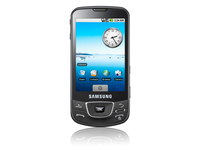
The Samsung i7500 Galaxy, the Koreans' first Android-based handset, has finally gone on sale in the UK.
O2 has started listing the handset on its website, and comes with a pretty hefty price tag as well.
The new phone, which was the subject of many rumours regarding a delay to its UK sale (something O2 flatly denied to TechRadar), will cost up to آ£245 on an 18 or 24 month contract.
However, it has come a lot later than the anticipated UK release date of end of July / beginning of August.
Marquee signing
Users can get it free, although they will have to pay around آ£40 per month for the privilege of owning an Android handset from Samsung.
This is another big-hitting handset appearing on O2's books, joining the iPhone 3G and the iPhone 3GS, and will be accompanied by the Palm Pre later this year.
Some believe the appearance of such 'marquee' phones signals the end of the iPhone's exclusivity in the UK, although such rumours have yet to be confirmed by O2.
But users will likely be faced with something of a quandary when deciding which phone to buy, as the Samsung Galaxy i7500 is feature-packed with a 3.2-inch OLED screen, a 3.5mm jack, the latest Android OS and s super slim chassis of just 11.9mm.

| |
Read More ...


No comments:
Post a Comment